
In short:
A log template is a ready-made setup for a specific type of incident. The template can include notification text, documents, teams to notify and tasks. When you start a log from a template, most of it is already filled in. You go through five steps, adjust what is needed for this particular incident, and start the log. The notification is then sent to the selected people.
Before you start
- You need access to start logs. Users with the lowest access level do not see the Start log button.
- Log templates are set up by an administrator in the account settings. If you can't find the template you need, contact your administrator.
How to do it
- Open the dashboard and click the red Start log button:
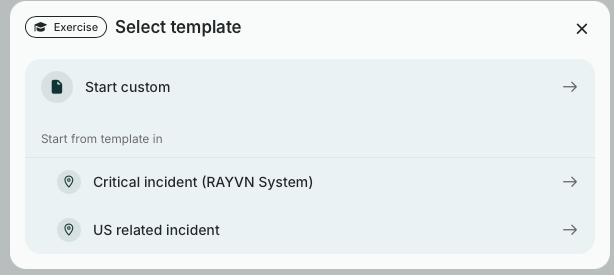
- Choose a log template from the list of incident types set up for your organization:
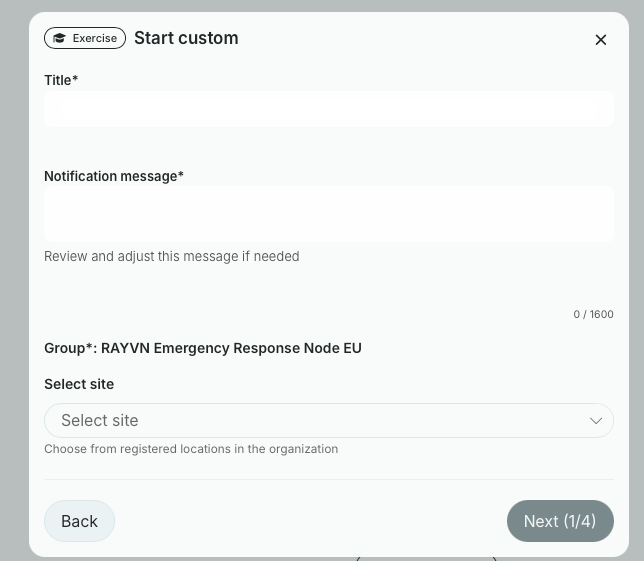
Step 1 – Text: Review the title and notification text. This is the text sent by SMS, email and push notification. Here you also see the documents included with the template. They become available to everyone in the log.
Step 2 – Teams: Check which teams will be notified and invited to the log. Teams preselected in the template are listed under selected teams. Add more with + next to the team. You can open a team to see who is in it and which notification channels they have. You can also turn off notifications for a team.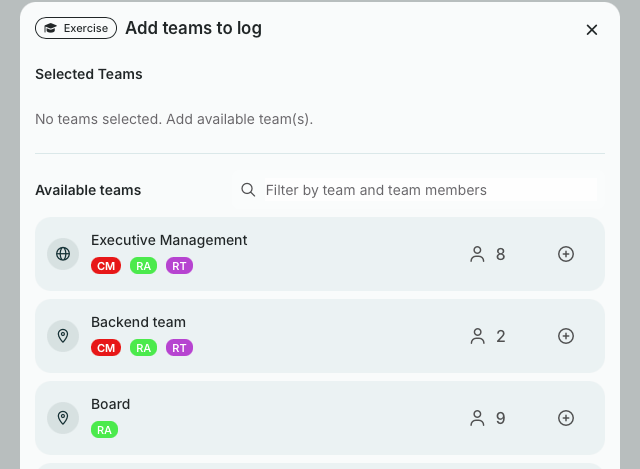
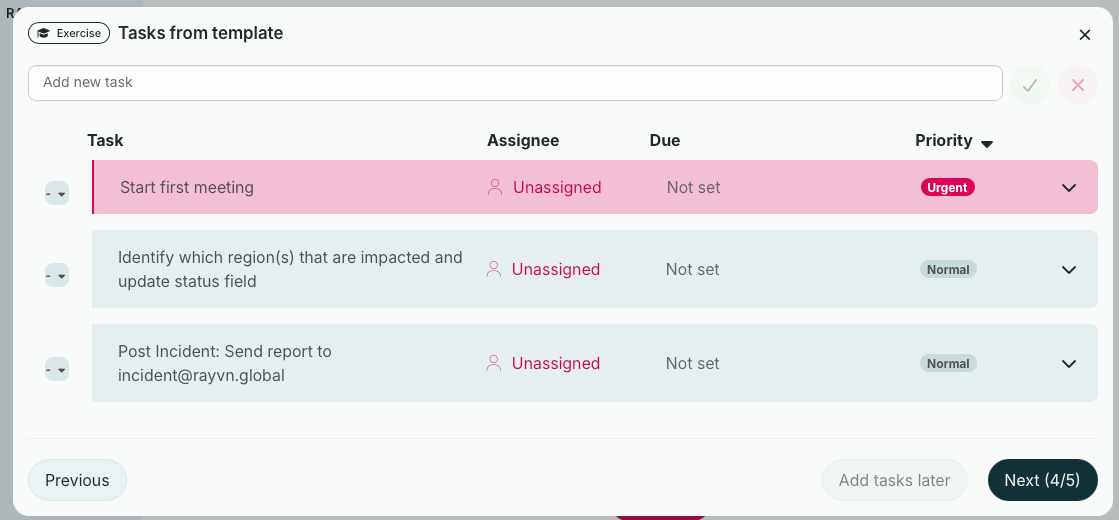
Step 3 – Tasks: Review the tasks from the template and set their priority. You can add new tasks now or later.
Step 4 – Exercise or real incident: Choose whether the log is an exercise or a real incident. When you confirm, the notification is sent and the log starts.
Optional – Map: Set the location of the incident by searching for an address, entering coordinates or clicking on the map. The location can be changed later. If the map is hidden for the template, this step is skipped.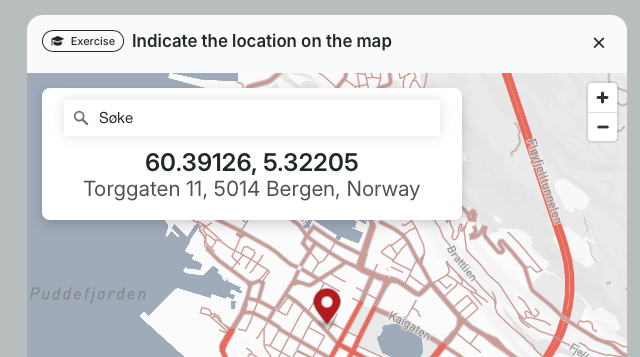
Good to know
- Everything can be changed along the way. The template is a starting point. You can change the text, map, teams and tasks in each step before you start.
- Step 3 only applies to the first notification. You can add more people and teams to the log at any time after it has started.
- Notification channels per person (SMS, email, voice call, app) can only be changed by an administrator.
- An exercise works exactly like a real log. The only difference is that all notifications are labelled as an exercise, and the log is marked as an exercise. That way, there is never any doubt about which is which.