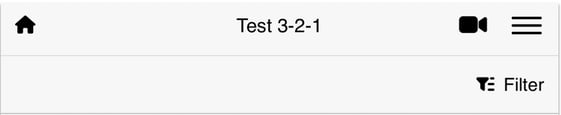
Conference calls let you talk directly with your team from the RAYVN app, without needing a separate video tool. This is handy when a message alone isn't enough, for example when you need a quick face-to-face checkin during an incident. The conference call feature is available in both the web version and app version of RAYVN.
To enter a conference call in the RAYVN app, do as follows:
- Open a log in the app. A camera icon will appear in the log header, tap it to start or join a conference call.
- The first time you tap the camera icon, you will be prompted to grant access to your device's camera and microphone. Once you have accepted, a preview of your video feed will appear before you join.
- Click "Join meeting" to join the meeting.
Conference call functions
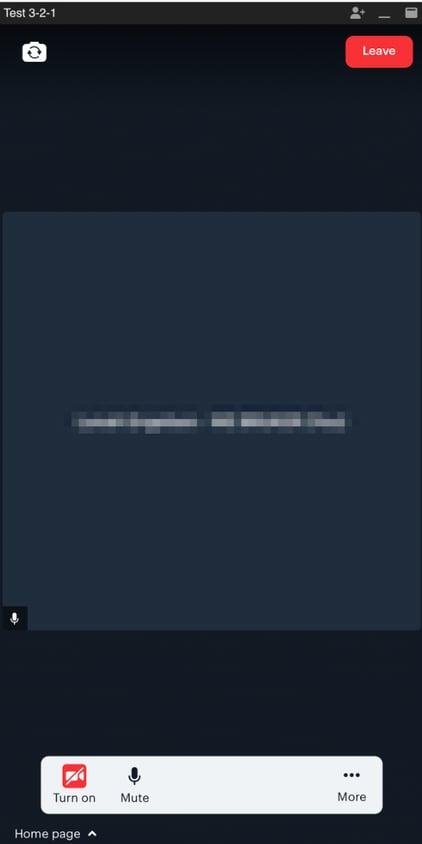
The app version of the conference call includes the same functions as the web version. The image below shows each function and its location:
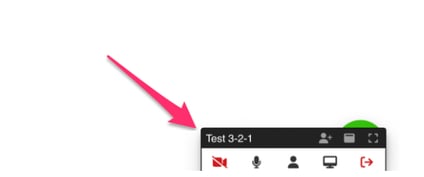
- By clicking the small arrow at the top left corner in the conference call window, you'll minimize the window. The conference call window will then appear as a small bar at the bottom of your screen in the RAYVN interface, like this:
The camera - Flip between your device's front and back cameras by tapping the camera-flip icon in the upper left corner. This is useful when you need to show your surroundings to other participants.
- Turn on or off your camera by clicking on the camera icon at the bottom left corner.
- Turn on or off your microphone by clicking on the microphone icon at the bottom.
- Tap the three horizontal dots (⋯) to access Settings or view the list of participants in your call.
- Click the gear to go to settings. Here you can change which microphone or camera you want to use and test your speakers. You can also adjust the video quality to match the one that's best for your network. If your connection is poor, you should switch to a lower quality to save bandwidth. The bandwidth saver option will turn your camera off. You'll receive low-quality video from others. You can also change the language for the call interface by selecting the "Language" tab.
- By clicking on "People", you'll see a list of all the current participants in the call. You can also change your own name by clicking on the three dots next to "You", or hide self-view if you don't want to see yourself.
- To leave the call, tap the red Leave button.
Camera icon status indicators
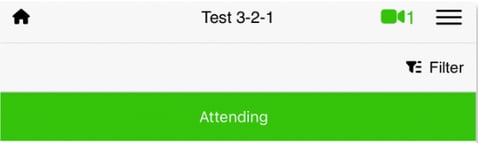
The camera icon on top of your screen can show three different colours:
- When you are in an active call, you'll see the camera icon turns green, and you'll see a green banner across your screen:
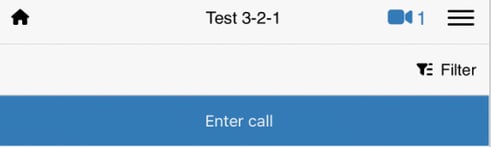
- When someone else is in a call but you have not yet joined, the camera icon turns blue and a blue banner appears:
- Finally, when no one is in a conference call, the camera icon is grey and there is no banner across your screen: