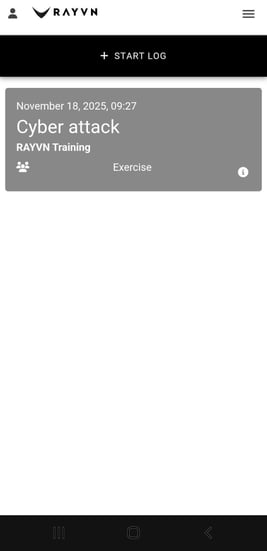
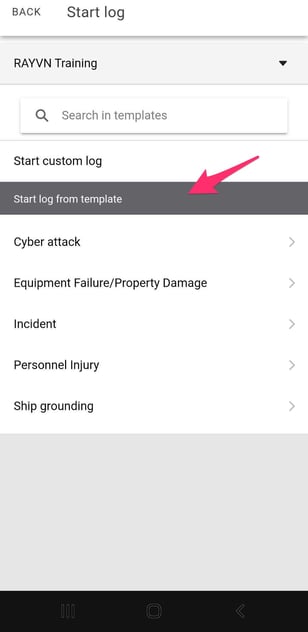
Start a log from a predefined template
Open the app, and tap on the button "Start log".
Then, click on one of your templates.
All information that is connected to your template will be predefined, so the last step you need to complete is to verify that the information in the template matches what you want to activate, and click "Create".
Start a custom log
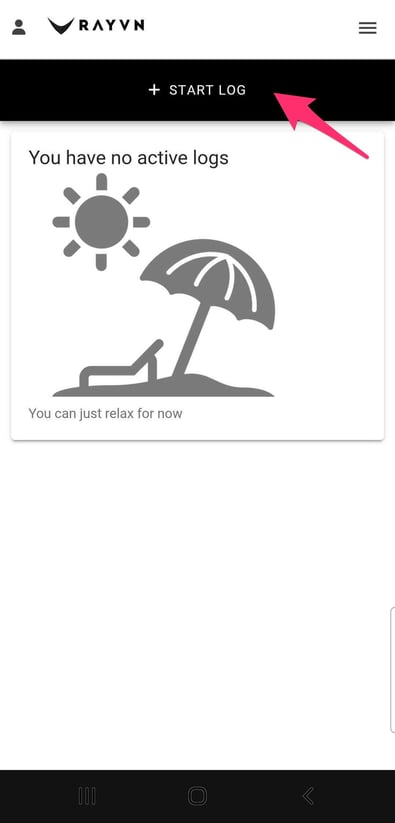
If you want to start a log from scratch, tap the "Start log" button.
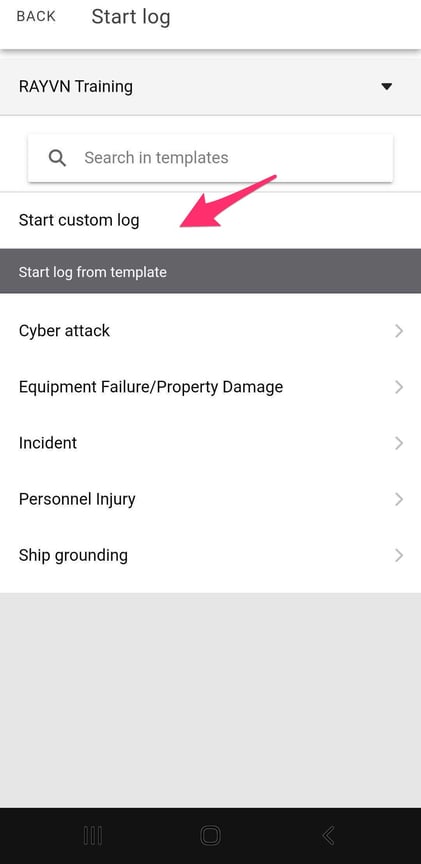
Then, click on "Start custom log".
First, you must decide whether the log is a real situation that you need to manage or just a drill.
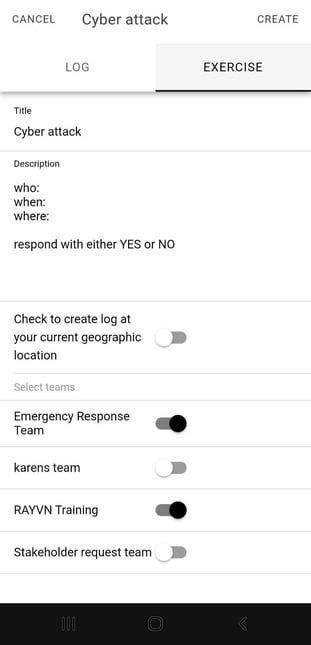
Then define the name/title of the new log. Then write a short description of the situation at hand, so that the teams that receive a notification get the information they need.
Then choose if you want your location to be set as the location of the specific incident. If you check this option, your team will be able to see the location of the incident on the map of their mobile app.
The available teams will be listed. Select the teams that should be notified and be given access to the log. When you have selected the teams, tap "Create".
Now RAYVN will notify all your teams and personnel, as specified in your account settings. The notification can be sent by SMS, Email, app notifications, and automated phone calls. All the notifications will be sent seamlessly in the background, and RAYVN will start to track the response from your teams.