
Using meeting templates might be useful if your organization want to use meeting that has specific items and structure that need to be addressed during the meetings. You can create multiple meeting templates, and assign them to log templates in specific rooms.
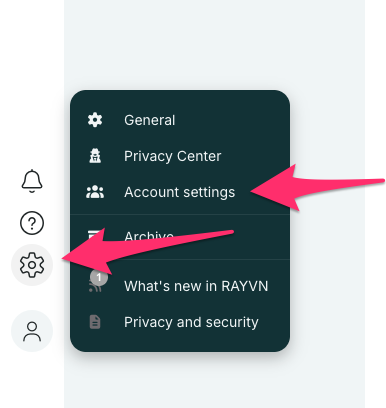
Click on the setting/gear icon in the menu, and then select Account settings.
Click on the tab - Meeting templates.
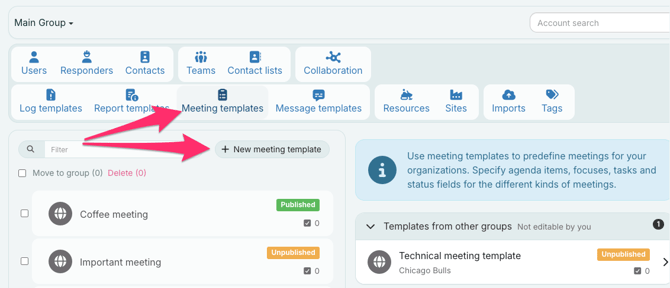
Here, you will find a list of your meeting templates. If you want to create a new template, click "New meeting template."
Now, enter the specific details that you want to have in this specific template. It will be possible to make changes to the template after you have saved it.
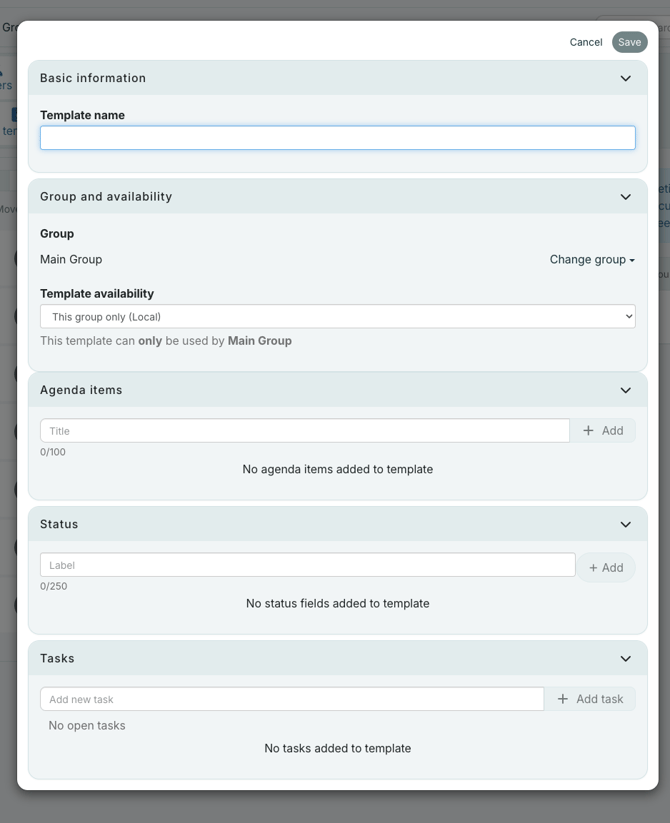
Template name
This is the name/description of the meeting template.
Template type
This set in which part of the organization the template will be available.
Group
Defines the group where the template will be assigned.
Agenda items
Items/topics that need to be discussed during the meeting. Click on "Add" to add an item or topic you want to be part of your meeting. Each item will have a text box, where you can add text during the meeting. The number under each text box indicates how many characters have been entered.
Status
This section is meant as a visible status field connected to specific numbers. "Injured people: 2", "Persons evacuated: 52", and so on. The numbers can be updated. All users, also the ones not participating in the meeting can see the Status in the tab "Status".
Tasks
This works in the same way as creating tasks in the log view. You can assign tasks to users, and set deadlines. It is convenient to be able to set tasks in the course of a meeting.
When you have specified the content of your meeting template, click "Save".
The template will now be added to the list in the left column. By selecting the template, you will see its details in the right column. By default, new meetings are set as "Unpublished". To be able to use the meeting template in logs, you need to click on the Published/Unpublished switch, and then "Save". The content of the template can be edited at any time, followed by "Save".
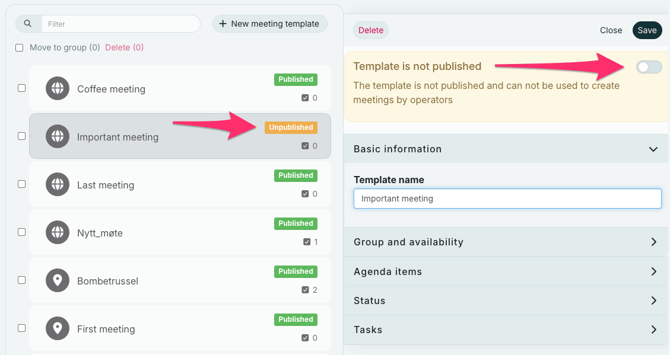
Published meeting templates will be available in the Meeting section during active logs.
Meeting templates can be assigned to log templates. When a log is started from a log template, a meeting with your template of choice will be created automatically when the log is started. This way you can be certain that your team uses the correct meeting template in a specific scenario.