
In a crisis, being able to reach a large number of people quickly can be critical, whether that means employees, residents, or others affected. This feature lets you send large volumes of SMS notifications in a short amount of time, so important information reaches everyone at once. It's built as a separate module and must be enabled by us, so get in touch if this is something you'd like to use. Here you'll learn how the feature works once it's enabled.
How does Emergency Communications Solution work in RAYVN?
Once you have the module enabled, you'll be able to send out a large number of SMS notifications using the "Send message" feature.
This feature is located at the top of your screen inside the active log in RAYVN. Look for the small envelope:
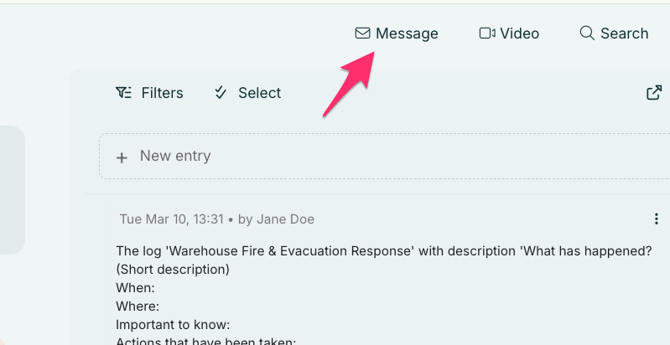
When you click on the envelope, you'll get a view that looks like this:
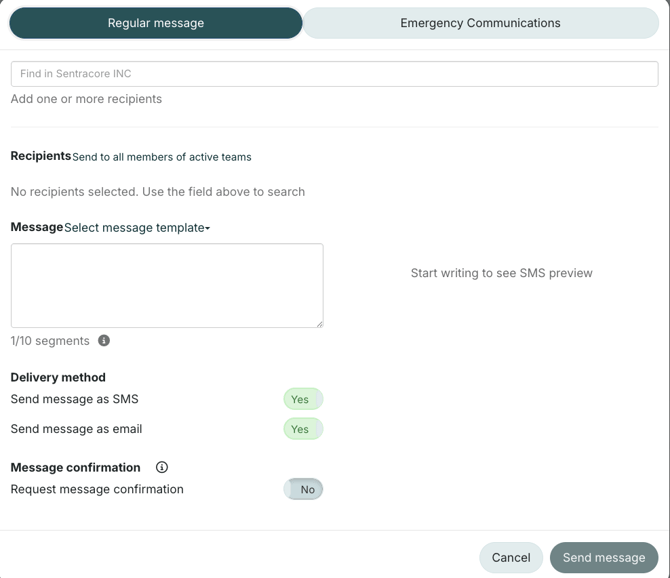
You'll notice, if you select "Emergency notifications" and add recipients, you can only send emergency communications to contact lists. This feature is intended only for mass notifications, recommended if you are sending messages to over 500 recipients.
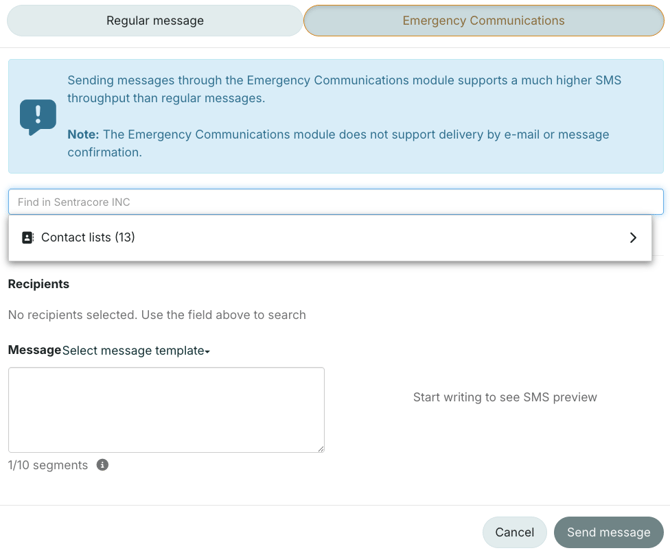
On the right side of the message box, we've added a preview of how the SMS will look. This is to make it easier to see how your message will look for the receivers.
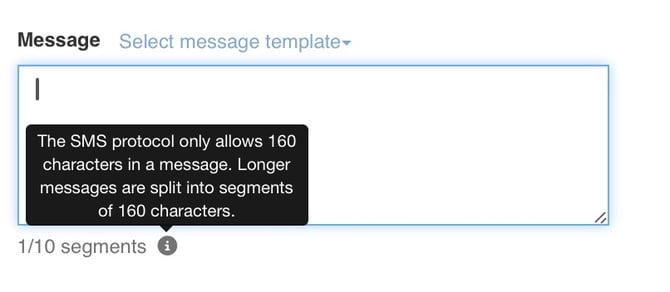
At the bottom of the message box, you'll find your current segment count.
Note that the Emergency Communications module only supports SMS, not Email.
If the message exceeds 160 characters, you will be informed that the message will be split into several segments when you send it. This will affect throughput and reduce the speed somewhat.
Sending a message
When sending a SMS to a Contact list using the Emergency Communications module, a log entry will appear in the log. The log entry shows a progress bar, and when you use your cursor to hover over the bar, it expands and displays more information about the message. In this example, you'll see that one message has failed to send to recipient.
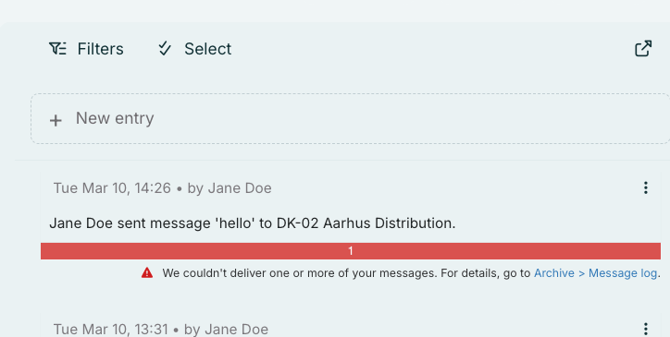
To see more information about the failed message(s), you can click on the row below the bar which takes you to the SMS section in the Report module.
The progress bar will display 4 different delivery statuses, indicated with 4 different colors:
* Orange: Total SMS to be processed
* Blue: In Send progress
* Green: Successfully delivered
* Red: Failed
Note:
- When the Emergency Communication module is used, the users receive SMS from sender "RAYVN", and not a regular phone number.
- The receivers can not reply to that SMS.
- When Regular Message is used, the user will still receive an SMS from the regular number, and they can reply to it.
The Archive
In the Archive (available to users with the Log Manager role, or higher), you'll also find a section called "Message log".
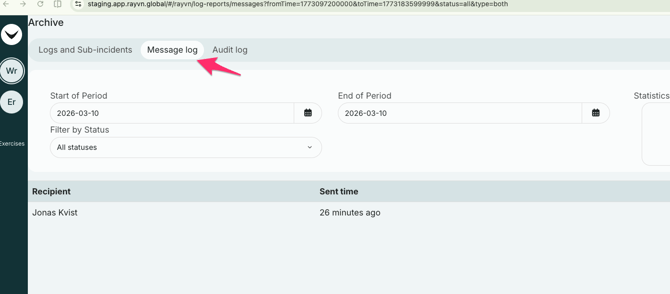
Here you'll find columns for Recipients, Sent time, Status and Segments.
The status field will show whether or not the message was successfully delivered, and if you hover over any status that says "Not sent", you'll get a short description as of why the message was not successfully delivered.