
In your reports, you can add attachments from your logs.
This includes log entries, where you can upload images as well.
In some instances, there is a need to emphasize the images in reports, and if you want to, you can give your images space to cover an entire page in your report.
To make an image fill a page in your finalized report, do as follows:
- In your report, select "Add attachments", and then select "log entries".
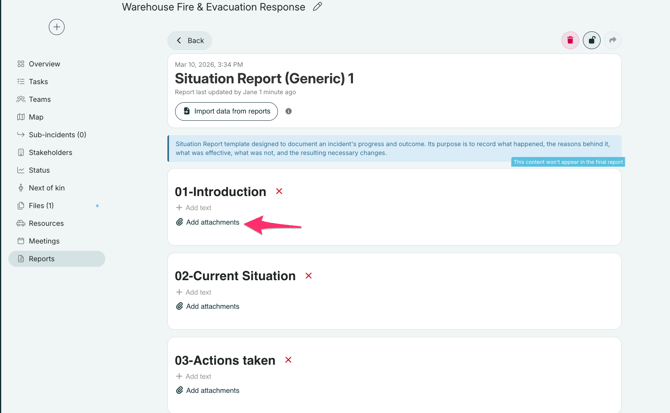
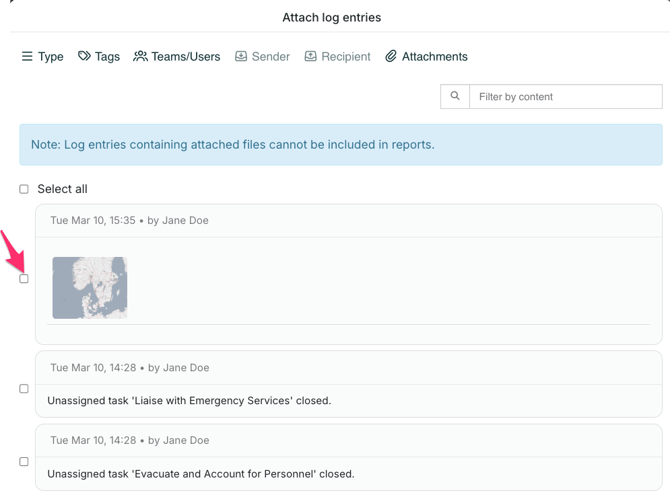
- Then, select the log entry that contains the image you want to include in your report.
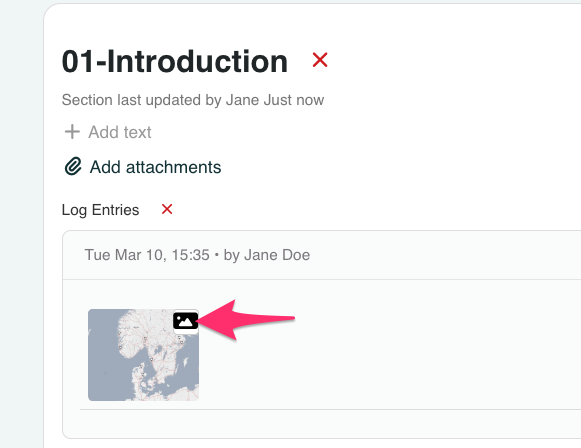
- Once attached, click on the icon on the image in the log entry. Doing so will add the image as its own page of the report, at the end of the finalized report.
- Once you are finished with your report, click "Finalize report" to close it and create the pdf-version of the report. Your image will be added as its own page at the end of your report.