
An incident can be separated into multiple different levels of severity. They might start on a low level or a high level, and escalate or de-escalate from there.
Setting a degree of severity on your incidents in RAYVN can help your team see what the current situation is like, and help them to see what priorities they should focus on.
Setting a "Severity"-level in RAYVN requires that you have activated this tool in the general settings.
To enable this feature, you need access to the "Log settings" in the "General" settings. This area is only available for users who have the Account admin or Group admin access level.
How to activate the "Severity" feature in your account
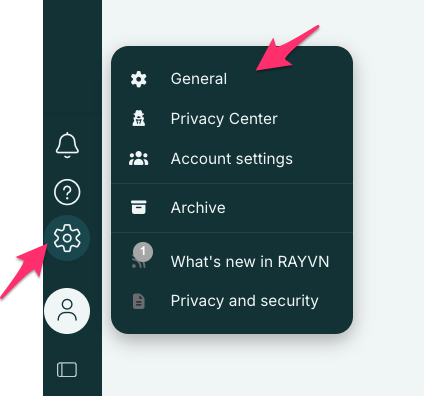
- Go to the "General" settings behind the gear wheel.
- Go to "Log settings", find the switch for "Severity" and turn it on.
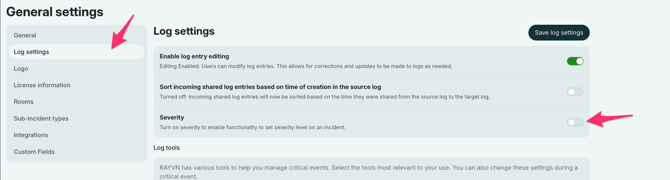
- Click "Save log settings".
Now, you are ready to use the feature in your logs.
How to set a level of severity in your log
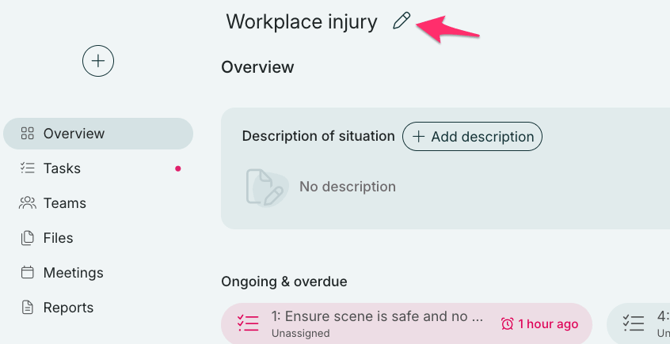
- Enter your active log and click on the pencil icon next to the title of your log
- In the field for "Severity", write a name for the level you want to add. Organizations use many different names for these levels, so we've left this area clear so that you can choose the jargon that fits your organization.
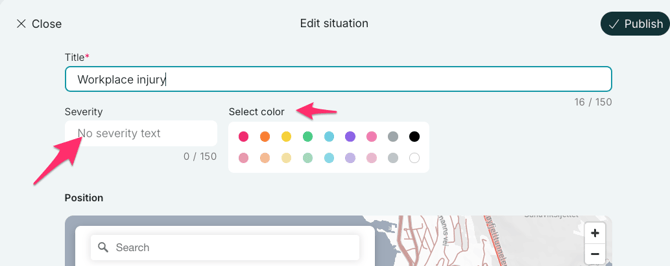
- Select a color to go with the level of severity.
- Click "Publish". The level of severity will now be visible next to the title of your log.
If necessary, you can change the level of severity during the incident.