In the active log, you will always be able to see the log feed on the left side of the screen. All users who are logged into the log will see the same information, and entries that are visible to everyone will be updated in real time for all users. This applies to both the web version of RAYVN and the mobile app.
In this article, you will learn how to:
- Post text in the log feed.
- Upload files/images to the log feed.
- Filter entries in the log feed.
Post text in the log feed.
To create a log entry in the log feed, click in the text box and start typing.
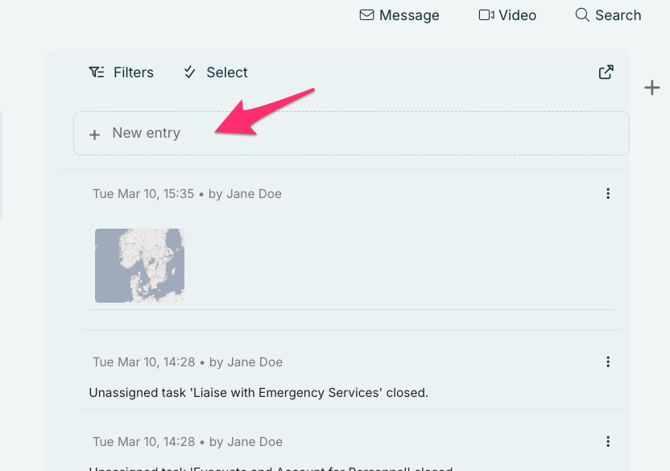
Your log entry may contain text and links, and you can also upload images and documents.
You can also tag the entry as "Released Information," "Key Event," or add a tag before publishing it.
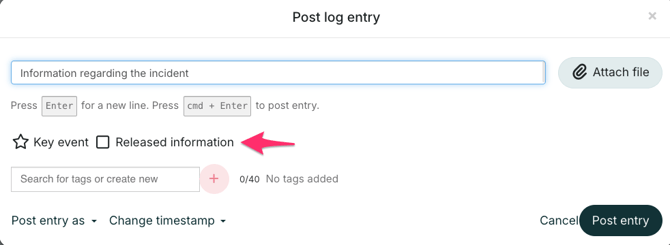
- Key events are important log entries that you may want to filter out later. Entries marked as key events will be labeled with a blue indicator.
- Released information is content that can be shared outside the organization. If you are using the Next of kin module in RAYVN, entries marked as "Released Information" will be shared in the log for users of the Next of kin module. Released information is labeled with a green indicator.
- Tags can either be created directly in the log or predefined in the account settings, where you can choose the name and color of the tag.
In some cases, you may want to post an entry on behalf of another person. This can easily be done by clicking the field labeled "Post entry as (select person)." Choose the person you want to post as, then press Enter or click "Post entry."
You can also choose to change the timestamp of a log entry by clicking on "Change timestamp." Then, select the time you want the entry to appear as published. Click "Set new timestamp" before clicking "post entry" to post the entry.
Upload files or images to the log feed.
To upload files or images to the log feed, click the upload icon labeled "Upload file." You will be able to select the file from your file system. You can add one or more files to each log entry.
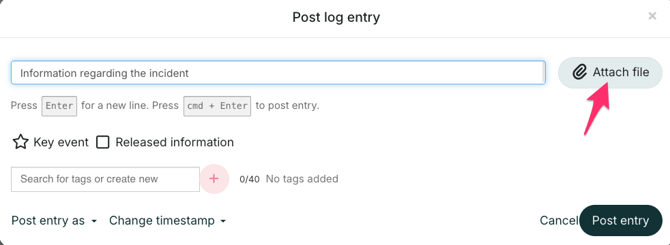
Once the file or image has been uploaded, a small preview will appear below the text field in the log entry. You can choose to add more files, write a caption or message to accompany the image, or post the image to the log feed.
Filtering
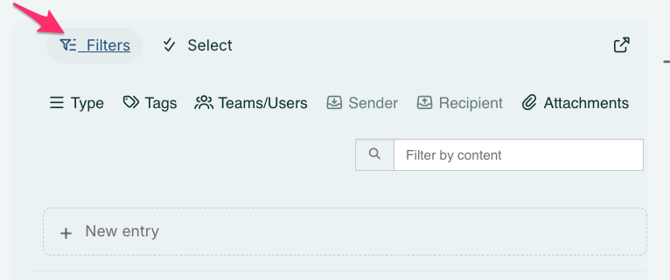
You can filter entries in the log feed by clicking on "Filter and manage feed," located below the text box where you create a new entry. When you click the filter button, you will see six options. You can:
- Type – Filter entries by ordinary, hidden, and system entries.
- Tags – Filter entries by tags.
- Teams / Users – Filter entries on behalf of either teams or users.
- Sender – Filter incoming entries by sender.
- Recipient – Filter outgoing entries by recipient.
- Attachments – Filter entries that contain attachments.
- You can also filter by content by searching for keywords in the open text field.