The Archive gives you access to your entire history of closed logs, all in one place. You can filter by the parameters that matter to you, download reports for documentation or review, and reopen a log if it turns out it was closed too early. It also includes a full record of every message sent from RAYVN, so you can check exactly what went out, and whether it was delivered.
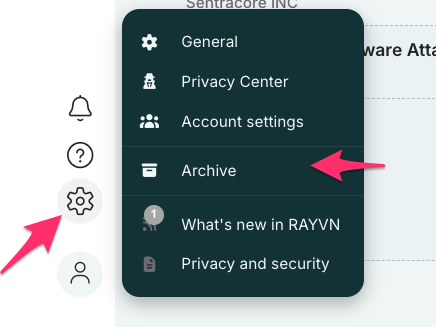
Access the module by clicking the Settings icon. Then click Archive.
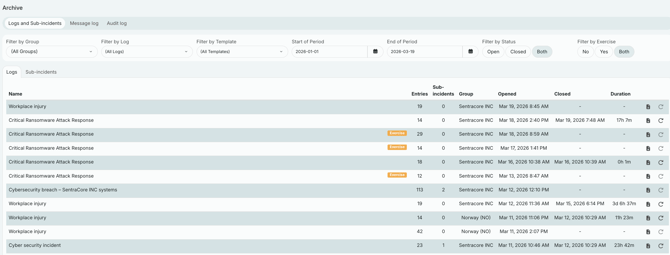
In the archive module, you will be able to filter the closed logs by all the parameters as seen below. By combining different filters, you will be able to get access to the specific types of log reports that you need.
Re-opening closed logs
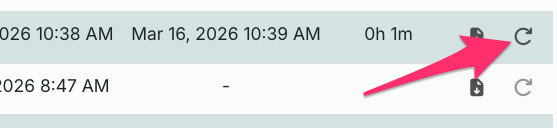
At the right side of the list of closed logs, you'll see two buttons. One shows an icon to download the closed log, and the other shows an icon to re-open the closed log.
If you've mistakenly closed a log, or need to re-open it for some reason, just click this symbol to open the log again:
Sub-incidents
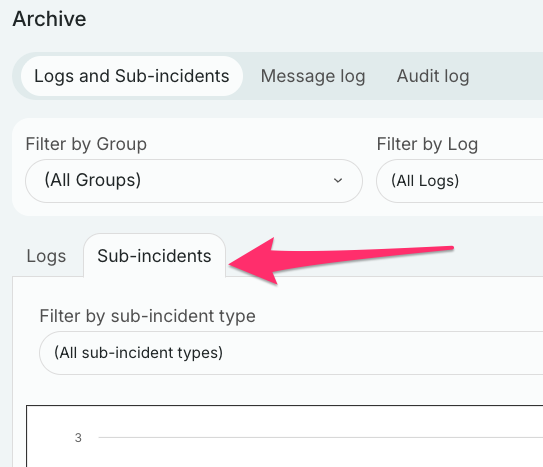
If your organization has set up sub-incidents, you will also be able to study which incident types that are most frequent in your organization. Additionally, you are able to filter on specific incident types, and download incident logs for a specific incident.
Messages
In the archive module, you'll also find a section called "Messages log".
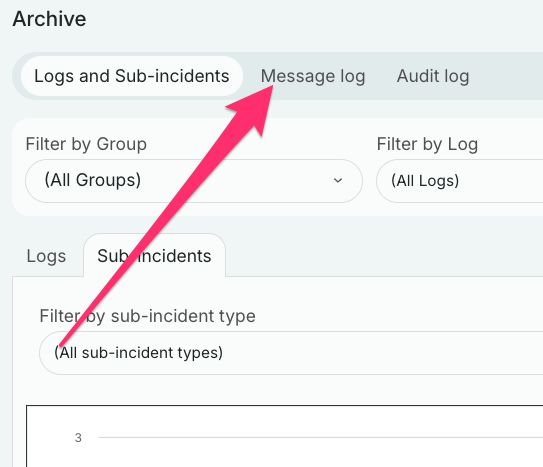
This section shows all messages that have been sent out from RAYVN.
Here you'll find columns for Recipients, Sent time, Status and Segments.
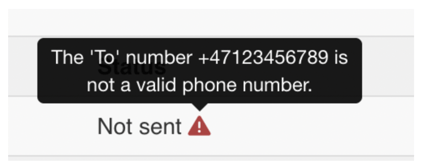
The status field will show whether or not the message was successfully delivered, and if you hover over any status that says "Not sent", you'll get a short description as of why the message was not successfully delivered.