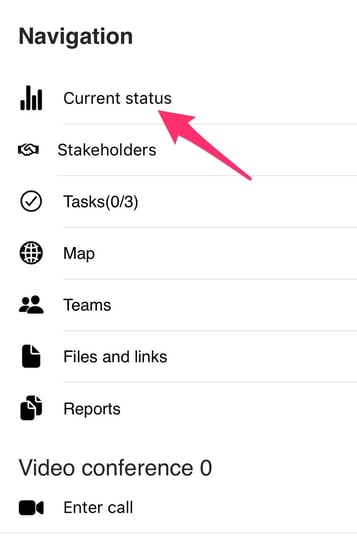
In the "Current status" tab, you can add values describing the currents status of the situation. This section is meant as a quick way to communicate to your teams what the currents status is. The status can be any measurable entity like:
- Injured people: 2
- Persons evacuated: 52
- Etc
Creating a status
To create a new status, click the box called "Enter name of new status" in the status section in your log.
Write the name of your status, and click the checkmark to post it.
After the status is posted, you can enter the value of the status by clicking the red text called "Input value".
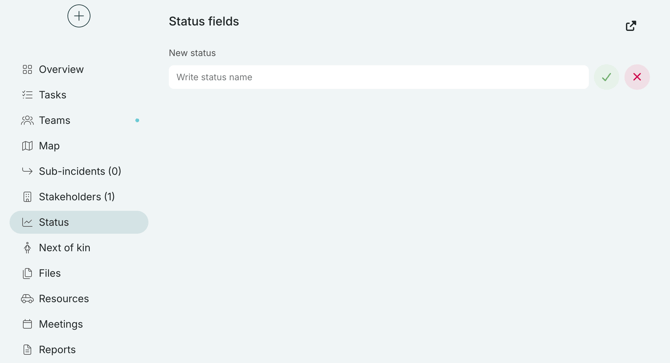
If you need to update the value of your status, just click the value and rewrite it. You can also rename the status by clicking the three dots to the right of the status, and selecting "Rename".
Pin your status to the board
If you want to pin your status to the board, click the three dots to the right of the status, and select "Pin to board".
Pinning the status to the board will make it visible to everyone, including different rooms and stakeholders.
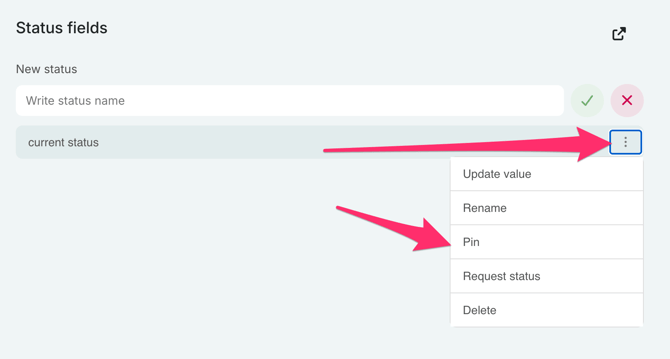
Request status update
If you've added stakeholders to your log, and they've accepted the invitation, you can request a status from any of them.
Click the three dots to the right of the status, and select "Request status". Then, the status bar will turn yellow and you will be unable to make changes to the status, because the stakeholder is now supposed to update the status.
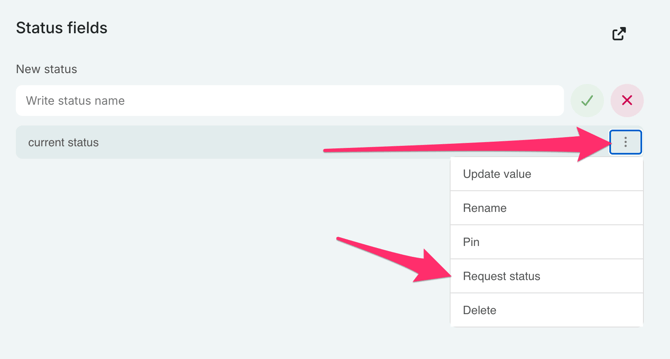
The stakeholder will notice a status in their "status" field that is marked yellow. When they've added a value to the status, the status in your "status" field will be updated as well.
You can also edit the current status as part of conducting a status meeting. When the meeting is closed, any updates of the status made in the meeting will be added to the log, as well as recorded in the Current status section.
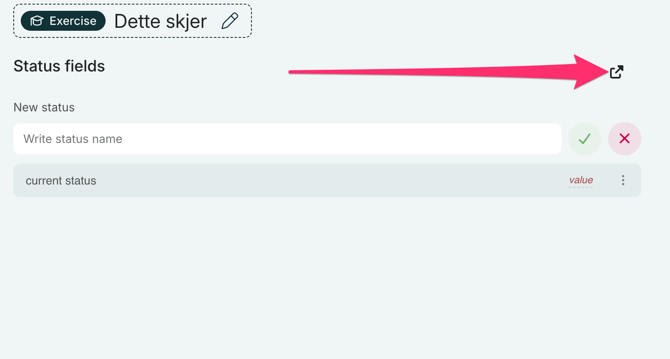
Open Separate Tab for Current Status
By clicking the icon in the top right corner, a separate tab will open displaying the current status.
Current status in the mobile app
You can also view the current statuses in the mobile app.