
A notification template is a predefined starting point for an incident. It holds what you need to get the first notification out quickly: a title, the notification text, the teams and the response profile. This article explains how notification templates work and how to create, publish and edit them.
What is a notification template?
With a notification template, you write the message and choose the teams in advance. The person who starts the incident does not have to write everything from scratch, and the right people are notified every time.
Create one notification template for each type of situation you plan for. When something happens, you choose the template that matches the situation, check the details and send.
Tasks and files are not part of the notification template. They are in separate task templates and file templates, which you can add to the incident when you need them. This means the first notification goes out quickly, and you add the rest as the situation develops.
Create a notification template
You create notification templates in Account settings.
- Click Settings in the lower left corner.
- Click Account settings.
- Click the Notification templates tab. All your notification templates are listed here.
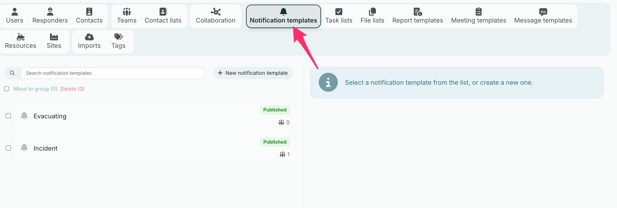
- Click "+ New notification template".
- Enter a name under Template name. Use a name that is easy to recognise when you start an incident under pressure, for example "Fire at main office".
- Choose an icon and a colour. This makes the template easier to find in the list, and helps response personnel recognise the type of notification
- Write the message under Notification text. This is the message recipients get when the notification is sent. Keep it short and clear, and say what has happened and what you want recipients to do.
- Choose a response profile under Response profile. The response profile decides which answers recipients can choose from. If you only need yes or no answers, you can keep the default.
- You can add Reminders if recipients should be reminded to respond. Choose the time interval for the reminder.
- Add the teams that will be notified. These teams are selected when someone starts an incident from the template.
- Remember to click Save.
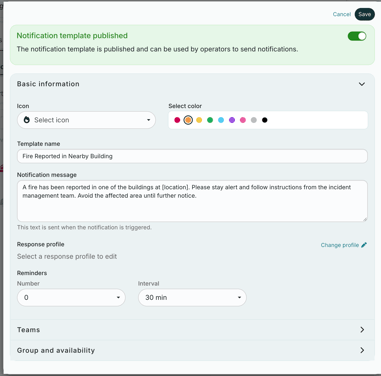
Note: The text, teams and response profile are only a starting point. The person who starts the incident can still change them before the notification is sent.
Edit a notification template
Keep your templates up to date when teams, plans or contact details change. An outdated template can mean the wrong people are notified.
- Go to the Notification templates tab in Account settings.
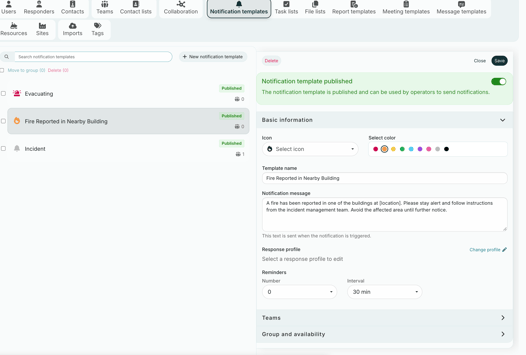
- Click the template you want to edit.
- Make your changes.
- Click Save.
Note: When your organization activates RAYVN Mobilize, your existing log templates become notification templates automatically. The tasks and files from each log template are moved to a task template and a file template with the same name, so you can easily see what belonged together.