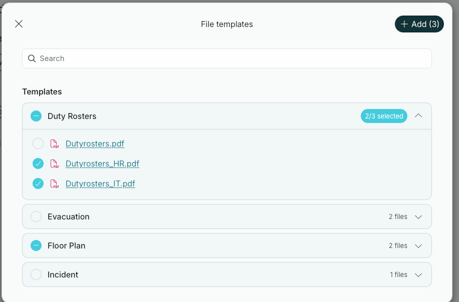
A file list is a predefined set of files for a type of incident. You can add it to an incident at any time after the incident has started. This article explains how file lists work and how to create them.
What is a file list?
During an incident, people often need the same documents, such as plans, maps or checklists. A file list collects these files in one place, so you do not have to search for them when time is short.
You can group your files by type of incident. When something happens, you add the file list that matches the situation, and the files are available in the incident.
File list are separate from notification templates. This means you can add the files the incident needs when it needs them, and use the same file list in many types of incidents.
Create a file list
You create file list in Account settings.
- Click Settings in the lower left corner, then Account settings.
- Find the File tab. The list shows each file list how many files it has.
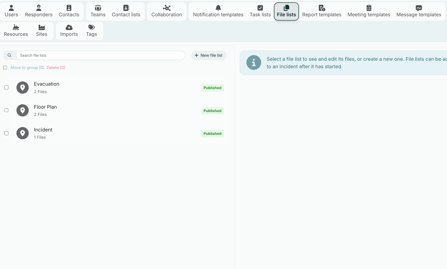
All file templates are listed with the number of files.
- To create a new file list click on "+ New file list".
- Give the list a name. Use a name that says what the files are for.
- Add the files you want to include.
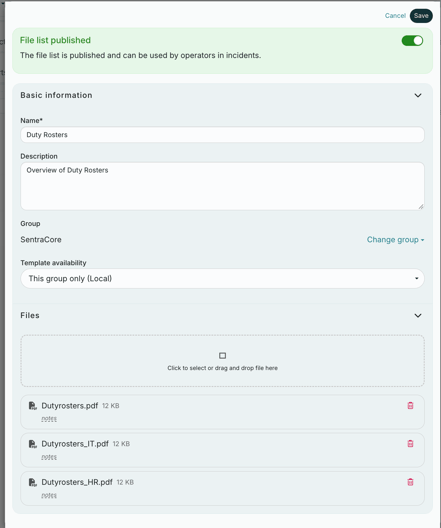
Add the files the team will need for this type of incident.
- Set the list to published.
- Remeber to Save.
Edit a file list
Keep your files up to date. If a plan or map changes, update the file template, so the next incident gets the right version.
- Go to the File list tab in Account settings.
- Click the list you want to edit.
- Make your changes.
- Remeber to Save.
Note: When your organization activates RAYVN Mobilize, the files in each existing log template are moved to a file template with the same name. You do not need to upload them again.
Add files from a file list to an incident
You can add files from a file list to an incident at any time, for example when the situation changes and the team needs more documents.
- Open the incident.
- Go to Files.
- Select + Add files from a template.
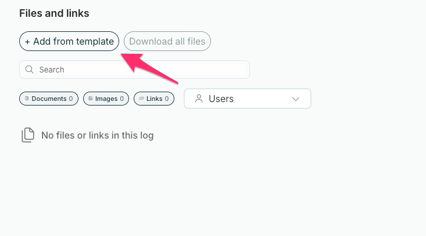
- Select the file list you want to add to the incident. You can also choose which files from the list to include.