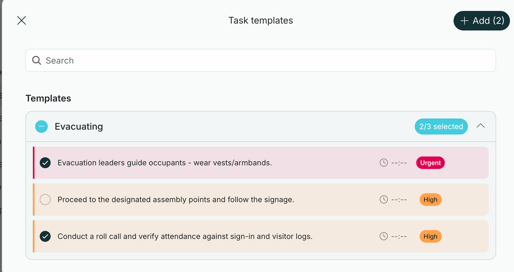
A task list is a predefined list of tasks for a type of situation. You can add it to an incident at any time after the incident has started. This article explains how task lists work and how to create and use them.
What is a task list?
A task list describes what needs to be done in a certain situation. Each task can have a deadline, a priority, instructions and subtasks.
Task list are separate from notification templates. This is because incidents rarely stay the same. With separate task list, you can add the tasks for each new part of the situation to the same incident as it happens, without starting over.
Because the task list are separate, you can also use the same list in many types of incidents and keep it up to date in one place.
Create a task list
You create task list in Account settings.
- Click Settings in the lower left corner, then Account settings.
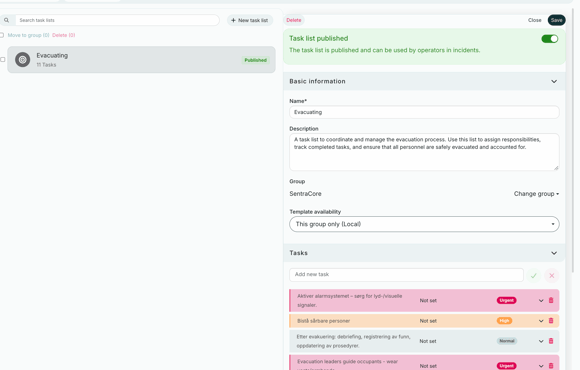
- Find the Task list tab. The list shows each task list and how many tasks it has.
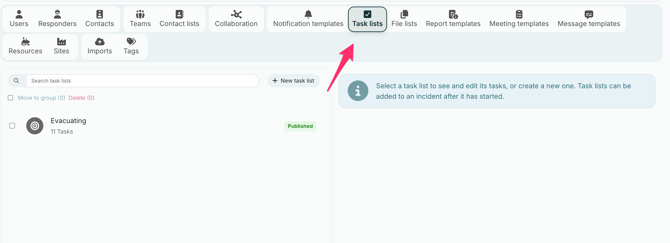
All task list are listed with the number of tasks.
- To create a new task list click "+ New task list ".
- Enter a name under and description, describe when and how the list should be used. This helps others choose the right list during an incident.
- Under Group, check which group the list belongs to. Click Change group to choose another group.
- Add a new task and enter a title. You can also set a deadline and priority for the task. You can add instructions explaining how the task should be completed. Subtasks can also be added if the task consists of smaller steps.
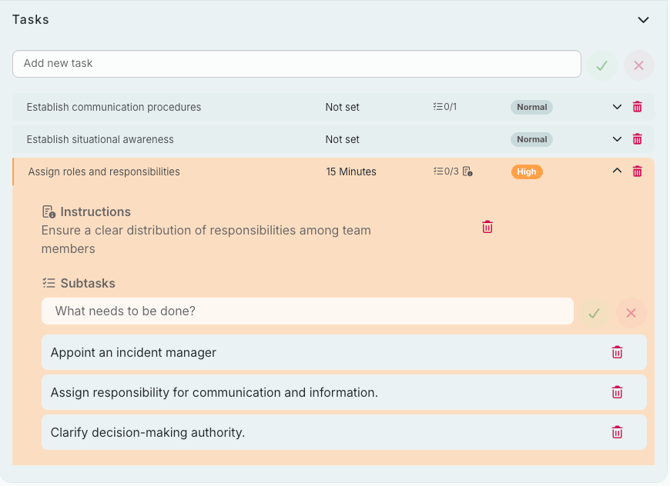
- Repeat for each task you want to add.
- Set the list to published. Only published list can be used in incidents.
- Click Save.
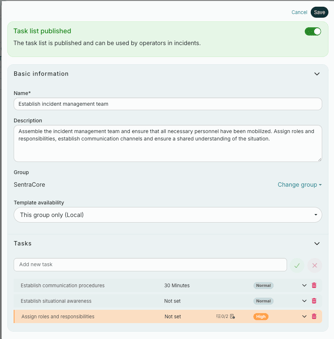
Edit a task list
Update your task list when your plans change. The next time someone adds the list to an incident, they get the updated tasks.
- Go to the Task list tab in Account settings.
- Click the list you want to edit. A window with the task list will show up on the right side.
- Make your changes.
- Remember to click Save.
Add a task list to an incident
You can add a task list to an incident at any time, for example when the situation changes and new tasks are needed.
- Open the incident.
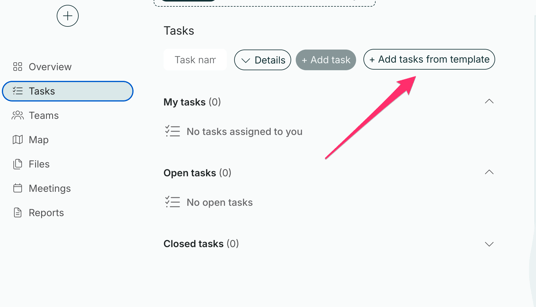
- Go to Tasks.
- Choose to add tasks from a list
- Select the task list you want to add to the incident. You can also choose which specific tasks from the list to include.