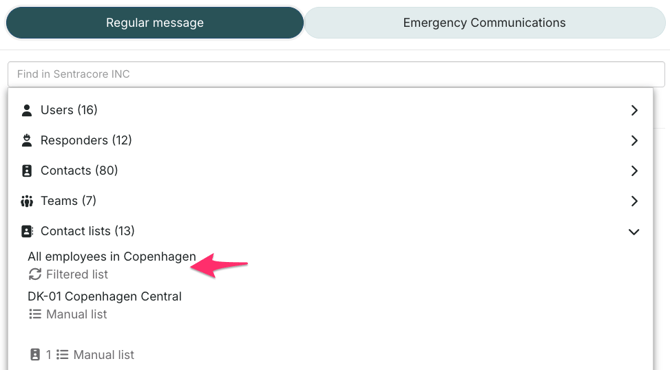
If you are using custom fields on users, responders or contacts in RAYVN, you will be able to create filtered contact lists.
These filters allow you to set search criteria based on the custom attributes you've added to the users/responders/contacts, so that they will be updated dynamically.
That means that if a user attribute changes, the contact list will be updated automatically, so that you don't need to manually update the contact list as well.
Note that to be able to create a filtered contact list, you need to have custom fields in your account, and you also need access to the account settings. To access the account settings, you need the Group admin or Account admin access levels.
How to create a filtered contact list.
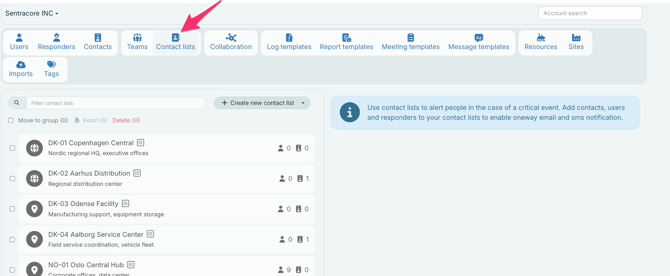
- Go to the Account settings, and select "Contact lists".
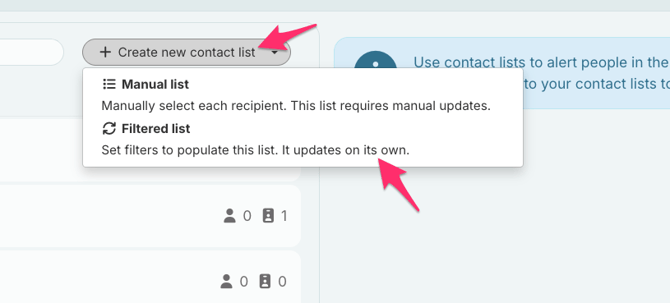
- Click on "Create new contact list", and select "Filtered list".
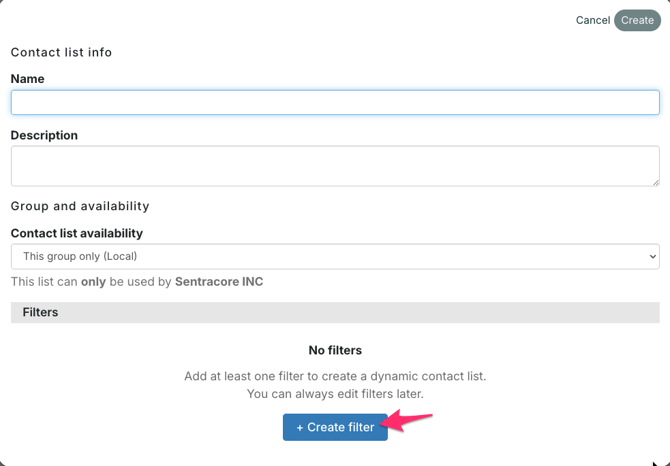
- Now, you need to give your contact list a name, and then click "+Create filter".
- Choose which groups the filter should apply to. This is only relevant if you account is structured in a group hierarchy. If you don't use groups, you can skip this. To select which groups you want, click "Groups" and then select which groups you want in your filter.
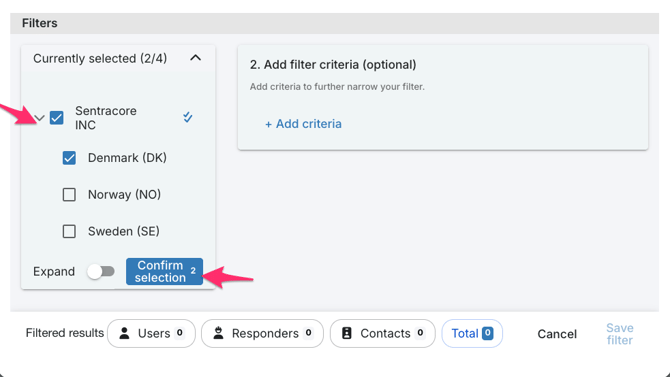
- Then, select which user types should be included in the filter. Do you want your filter to apply to users, responders and contacts? Or maybe just users? Maybe just contacts? This is up to you do decide.
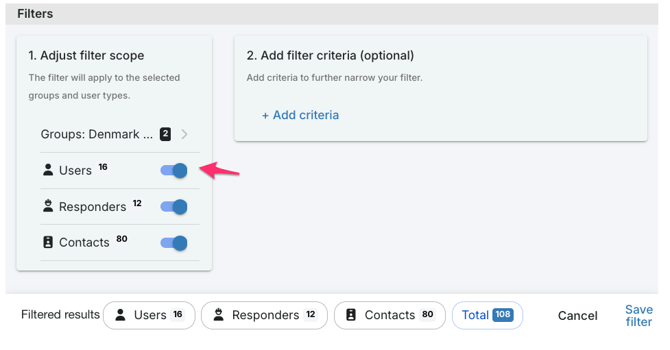
- Then, you can to select which custom fields the filter should focus on by adding filter criteria. Let's say that you have a custom field called "Office location" which indicates where employees are working, and some of them have the value "Copenhagen" for this section. Then you select "Office location" as the custom field, then select "Office location equals", and then select which value you want. In this case, we want the value to be "Copenhagen".
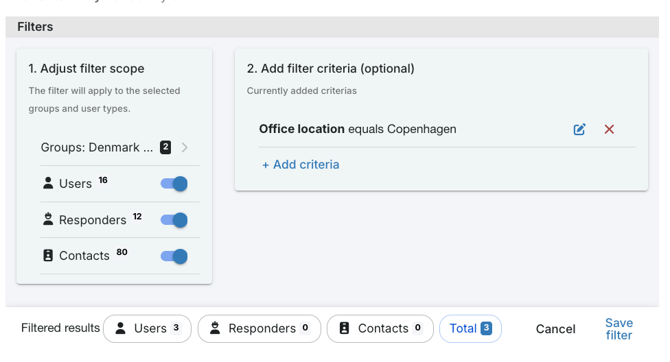
- If you want your filter to be even more narrow, say that you want your contact list to only consist of those working in Copenhagen, and who is also working in the IT department, you can add more criteria to your filter.
- When you are happy with the scope of your filter, remember to save it.
You now have two choices. You can either add more filters, if you want to expand your list to include matches to multiple filters, or you can save the list itself.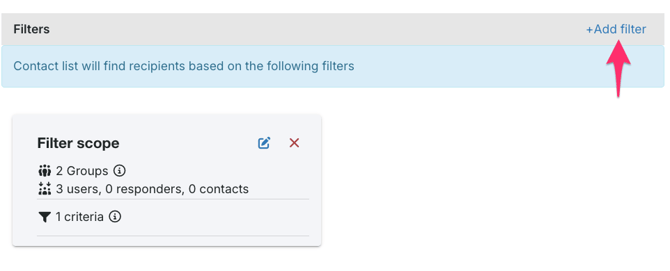
- If you choose to add more filters, you can repeat step 3-6.
- If you are happy with your list, click "Create". Your list will now contain all the users/respondes/contacts that match the description of the filters.
Anytime the custom field or value of either a user/responder/contact is updated, the filtered contact list will also be updated.
This means that you can rely on the fact that your contact list will be updated when your personnel are.
In the list of contact lists, you will now see all your filtered lists with this symbol attached to them:
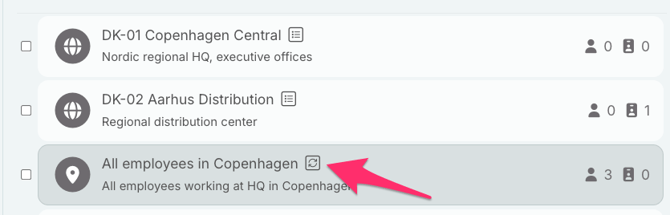
In the log view, when you want to send a message to your contact list, you will see it like this: