
When you start a new log, you are taken to the overview page. This page quickly gives you a complete picture of the ongoing incident, with important information gathered in one place. Here, you can view the description of situation, ongoing and delayed tasks and meetings, planned tasks, and pinned statuses related to the incident.
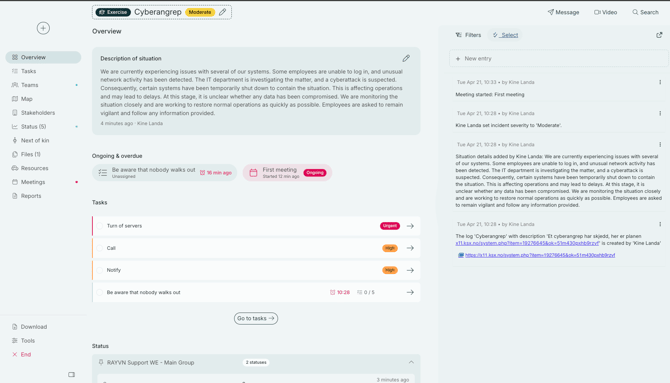
At the top of the overview page, you will find the "Description of situation". This provides all users to have a shared understanding of the situation. The situation description can be easily updated and edited throughout the incident. You can edit it by clicking the pencil icon in the upper right corner of the "Description of situation". 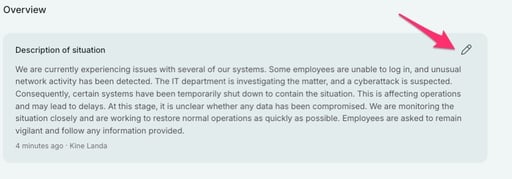
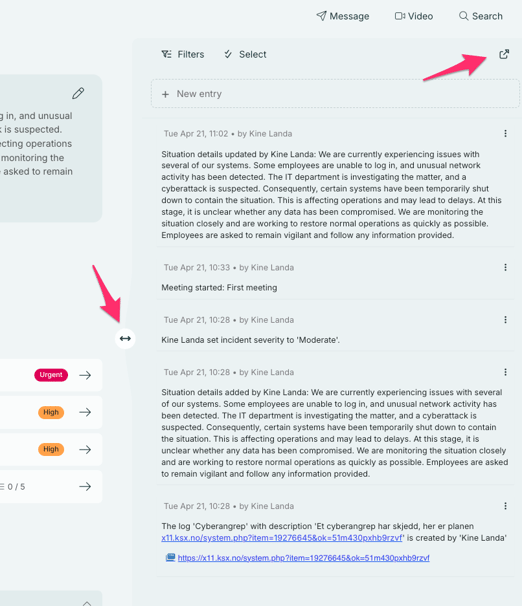
When you click the icon, you’ll be able to edit and modify the text. Once you are finished, click “Publish" and the text will be updated. The update will also be recorded as a log entry in the activity log.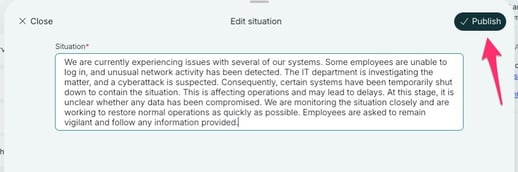
The log is displayed on the right side of the overview page. It is important for ensuring that everyone stays updated on what is happening and helps maintain a shared situational awareness. The log can be resized, you can expand or collapse it depending on how much space and focus you want it to have. To resize the log you have to move double arrow in the direction you want . You can also open it in a separate window, which is useful if you are working with two screens.
The toolbar is located on the left side of the overview page. Here, you can easily switch between different tools. The tools are always available, and it is quick to return to the overview page. Any changes you make in the tools, such as pinning a status will be showed on the overview page. The toolbar can also be resized You do this by clicking on the collapse button in the low right corner of the toolbar. You can also choose which tools to show or hide based on your needs, in "Tools".
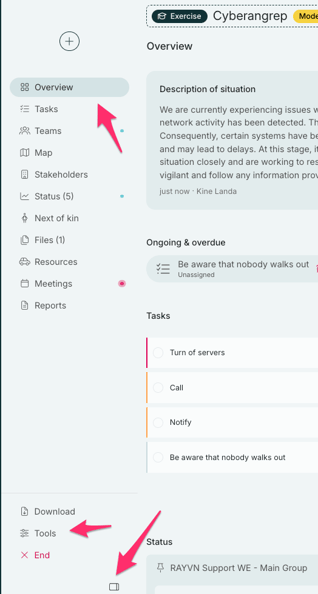
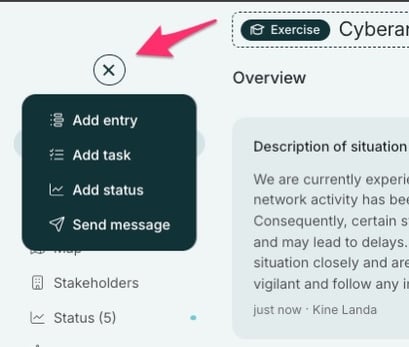
The action button gives you quick access to add new elements to the log, no matter where you are in the active log. The action button is the icon with a plus sign (becomes an X when clicking on it). It is always available at the top of the toolbar, allowing you to quickly register new events or tasks during your work. From the action button you can send messages, add log entries and create tasks.
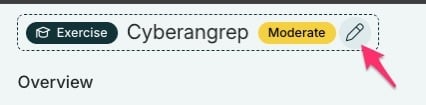
In addition, the overview page provides severity. Severity is showed on the right side of the incident tittle at the top of the page. You can freely set the name and color of the severity. To do this you click on the pencil icon by the incident title.
From here you can edit name and color of severity. Click "publish" when you are done.
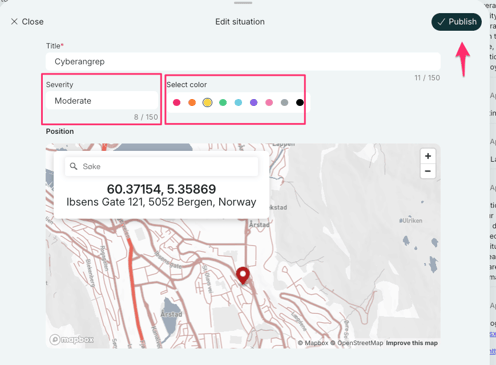
When you have publish the severity, this will be logged as an log entry.