
This article is relevant if you have an admin role in your RAYVN account. To set up Custom Fields, you need to be an account admin.
What are custom fields?
Custom fields are attribute sections that you can create to define what information should be included for each user, responder, and contact.
The fields themselves can be defined in the General settings by an account admin, and each section can then be filled with correct information for each user in the Account settings.
Both account admins and group admins can give values to the custom fields in the account settings for each user.
Custom fields can be used to create dynamic, filtered contact lists. Read more about this in our article about dynamic contact lists.
How to set up custom fields:
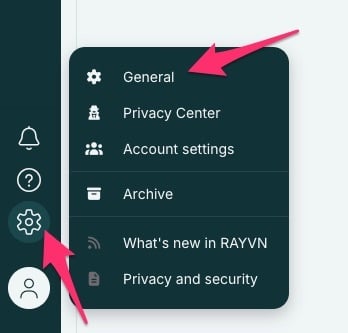
To set up custom fields, you must first enter the General settings:
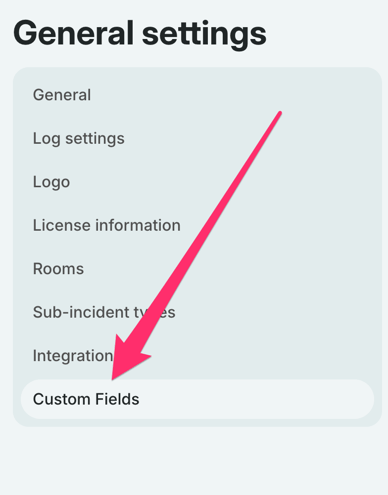
Then, select the section called "Custom fields":
Click on "Create field", and give your field a name.
Typical examples of custom fields can be "Department", "Location" or "Role". They all say something about our personnel which is useful for when we want to filter them out later.
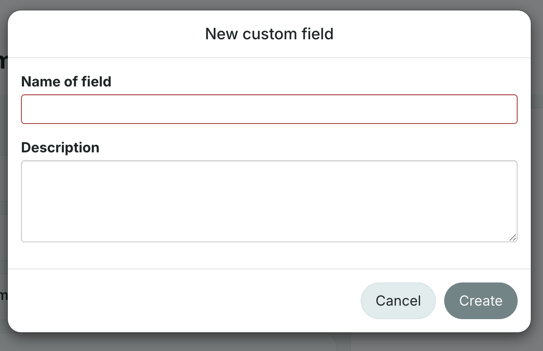
Once you've given your field a name, and you've clicked "create", it will now appear as a section for each user, responder and contact.
If you want to delete a custom field from your account, and thereby removing it from all your users, responders and contacts, you have to select the field and click delete. Then you need to confirm the field you are deleting by writing the name of the field one more time.
How to give values to your custom fields
Now that you've created some custom fields, you can begin to assign values to them.
A value specifies which information is relevant for each user. For example: if you have a custom field that is called "working location", then the value for that field may vary for each user. For some, their working location may be for example "London", and for some it might be "New York".
The custom field "Working location" is the same for all users, responders, and contacts in this instance, but the value of that field may differ for each person.
To assign values to the custom fields for each person, go to the account settings:
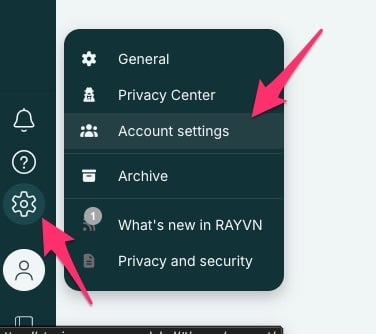
Then, find the person you want to assign specific values to, and open up the section called "custom fields".
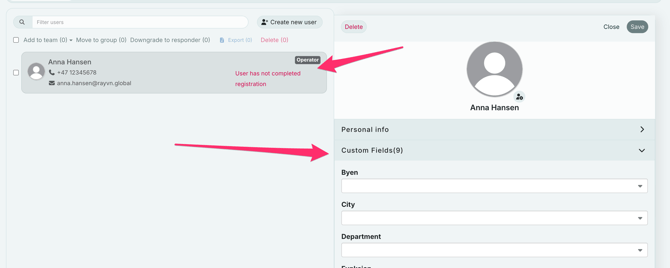
Click on each section to either pick a previously added value, or add a value by writing the name of that value. Click the "+" icon to add the value.
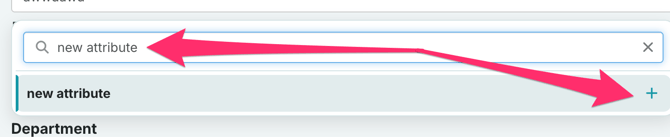
Now you've added values to your custom fields, and this information is now assigned to this person.