
Message templates let you prepare pre-written messages in advance, so they are already in place the day a crisis actually happens. That way, you do not have to spend time wording important messages while the situation is ongoing, and you can send out consistent, well thought out information from the active log.
Creating a message template
Go to the account settings, and select "Message templates".
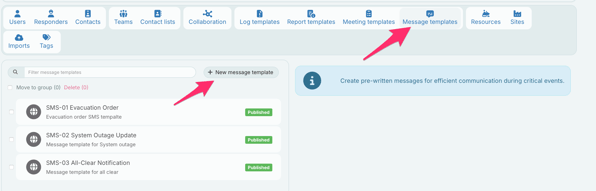
Click "+ New message template", and fill inn the following fields:
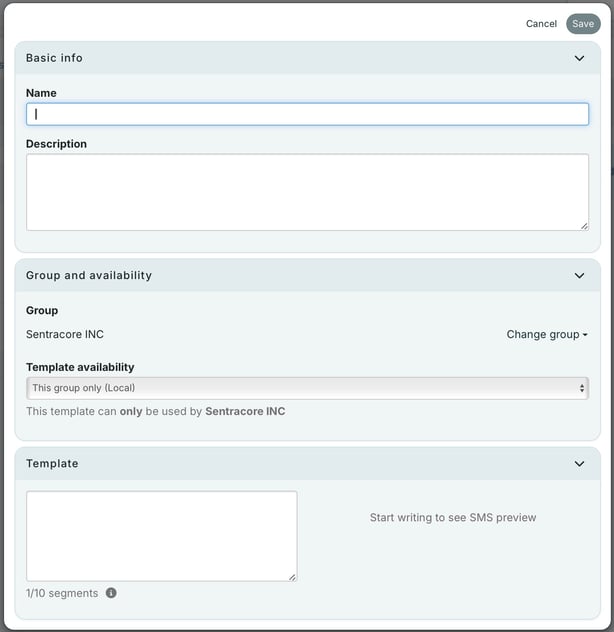
- Name: Give your template a name to make it easier to recognize later.
- Description: You can add a description to add more information, for example in which instances the template should be used and so on.
- Template type: Select the availability of your template. Should it be available to your whole organization, or just your group?
- Group: Select the group that the message template will be available from.
- Template: Write the message you want to have predefined in your template in the text box to the left.
On the right side, you'll see a preview of what the message will look like to the recipient.
Once you're done, click "Save" to save your template. Now, it will be available the next time you go to send a message from an active log.
Using a message template
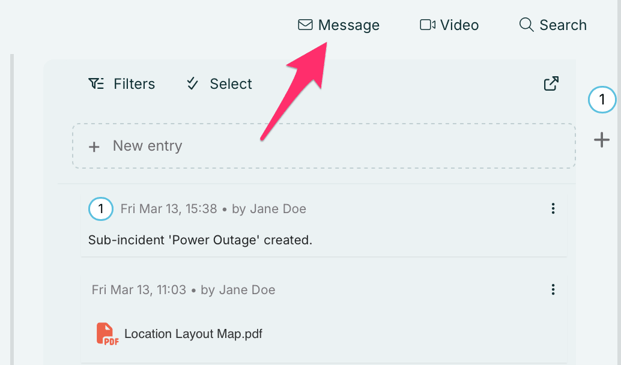
When you want to select a message template when you're going to send a message from your log, click on "Message" in the top right corner.
Then, select your recipients, and click "Select message template". When you select the template you want to use, the text appears in the text box.
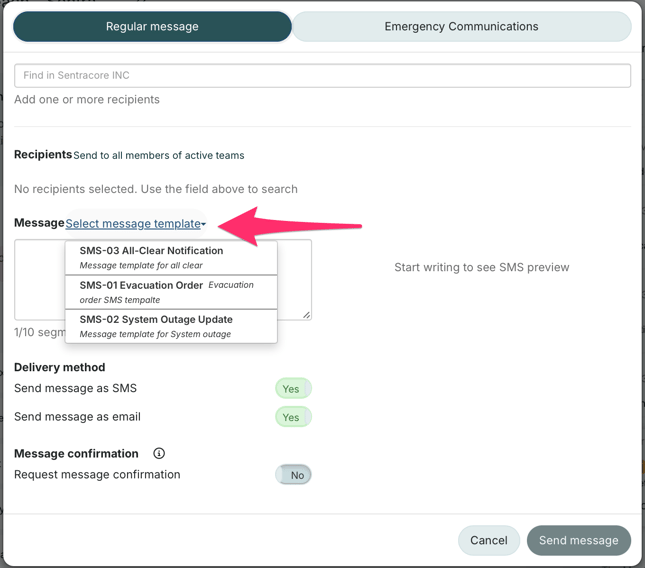
Make any changes if necessary, and click "Send message".