
When an incident happens, it is important to communicate quickly and clearly. The message function lets you send SMS and email to users, responders, contacts, or entire teams directly from the active log. Message templates make it easy to use clear, pre-written messages, while read confirmations show whether the message has been read.
How to send a message from a log:
- Press Message in the top right corner.
- Select recipient(s) - search through users, responders, contacts, teams, and contact lists.
- Select a Message template or type in your message from scratch.
- Select Delivery method (SMS and/or email).
- Turn on/off Message confirmation (optional) - a link will be attached to the message.
- Press Send message.
- All sent messages are documented in the log feed.
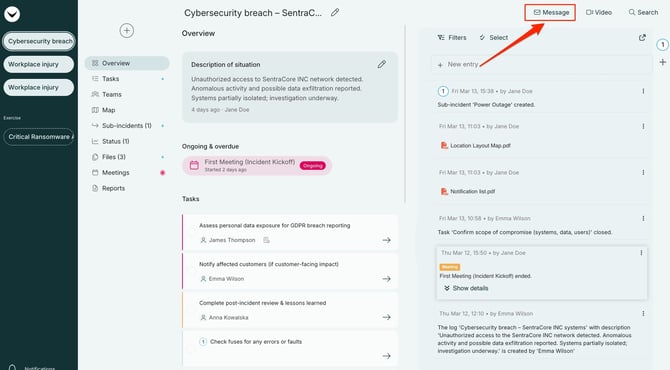
Screenshot from the active log - Message in the top right corner.
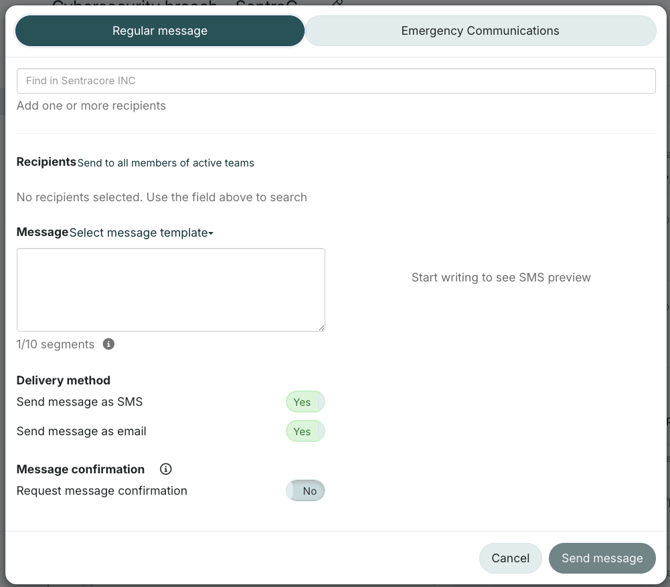
Form to write and send messages.
What is Emergency Communications?
Emergency Communications is a separate module in RAYVN (on demand). By selecting Emergency Communications before sending out messages, RAYVN speeds up the notifications by 10 times, making it efficient when communicating with a large audience. Read more about the Emergency Communications Module here.
Dynamic content
You can use dynamic content in SMS messages to make your communication more precise and relevant for each recipient.
When you create or edit a message template, you can insert variables that automatically pull information from the active log and the recipient.
From the log, you can use the following fields:
- Incident name: `#{NOTIFICATION.INCIDENT_NAME-KEY}`
- Description: `#{NOTIFICATION.INCIDENT_DESCRIPTION-KEY}`
- Team name: `#{NOTIFICATION.TEAM_NAME-KEY}`
- Incident site: `#{NOTIFICATION.INCIDENT_SITE-KEY}`
- Start time: `#{NOTIFICATION.INCIDENT_START_DATE-KEY}`
- End time: `#{NOTIFICATION.INCIDENT_END_DATE-KEY}`
You can also personalize the message with information about the recipient:
- Full name: `#{NOTIFICATION.RECIPIENT_USER_NAME-KEY}`
- First name: `#{NOTIFICATION.RECIPIENT_FIRST_NAME-KEY}`
- Last name: `#{NOTIFICATION.RECIPIENT_LAST_NAME-KEY}`
- Link to the application: `#{NOTIFICATION.APP_URL-KEY}`
When the message is sent, these fields are automatically replaced with the correct information for each individual recipient.