A response profile is a set of answers that recipients can choose from when they get a notification. Instead of only yes or no, recipients can answer, for example, "Coming in 10 minutes" or "Only available if necessary". This article explains how response profiles work and how to set them up.
What is a response profile?
When you notify a team, you often need to know more than who can come. You may also need to know when people can arrive, or under what conditions they are available. A response profile gives recipients a short list of answers to choose from, so they can tell you this without writing a message.
The answers show up in the incident in real time, so you quickly get an overview of who can respond and when. You can then build a new team from those who answered and send them a new notification. For example, the first notification can ask who is available and how soon. The second notification can tell the people you need to come in now.
You set up response profiles once, centrally, and use them in your notification templates. You can create different profiles for different incident types or levels of severity.
Response profiles are optional. If you do not set any up, recipients answer yes or no as before.
Create a response profile
- Click Settings in the lower left corner.
- Click General settings.
- Click Response profiles. Here you see all your response profiles.
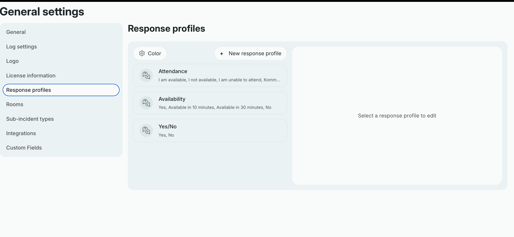
- To create a new response profile click on "+New response profile."
- Enter a name under Name. Use a name that describes the answers, for example "Arrival time".
- Under Options, click Add option and write the answer. Keep each answer short and clear, for example "Coming in 30 minutes".
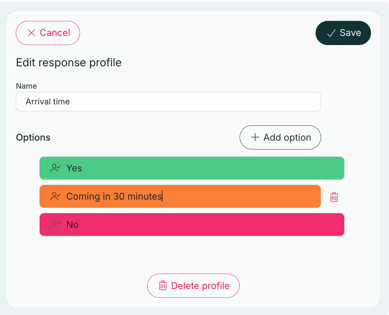
Each option is one answer recipients can choose.
- Repeat for each answer you want to add.
- Click Save.
Tip: Think about what the incident manager needs to know. A few clear answers give a better overview than many similar ones.
Edit or delete a response profile
- Go to Response profiles in General settings.
- Click the response profile you want to change.
- Make your changes, or click Delete profile to remove it.
- Remember to Save.
Use a response profile
You choose a response profile in a notification template, under Response profile. When someone starts an incident from the template, the answers from that profile are used.
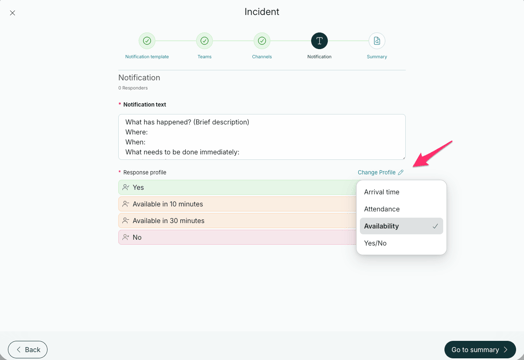
You can also change the response profile when you start an incident. This is useful if the situation needs other answers than the template has. In the Notification step, click Change profile and choose another profile.