
Account Admins have access to all groups in Account Settings.
Group Admins have access to their respective group and potential subgroups.
Access Account Settings from the bottom left corner.
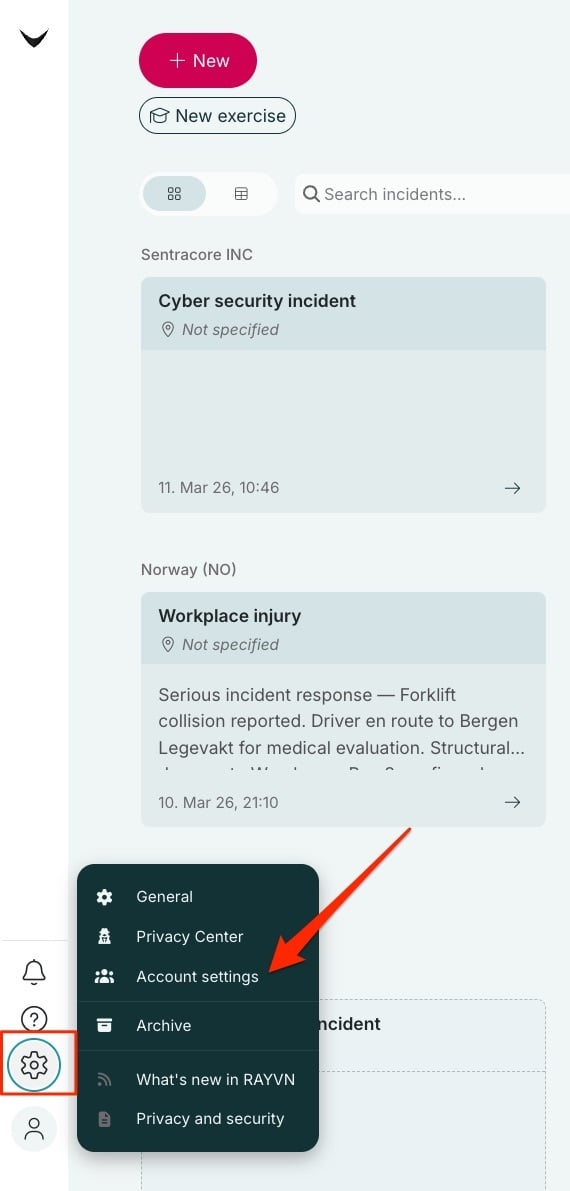
Introducing Account Settings.

Learn how to navigate: Account Search
First, we'll take you through how to navigate. In the top right corner you will find Account Search. Here you can search for content at all times, and be displayed hyperlinks to quickly move around. This is a great way to get an overview of all the content.
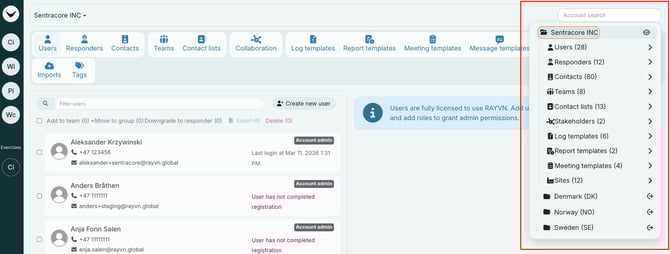
A closer look at Account Search.
Learn how to navigate: Left and right side of screen
Left side of screen: Overview of content.
Right side of screen: Details connected to selected content. All changes are done on the right-hand side.
Note: Always press save when finished editing!
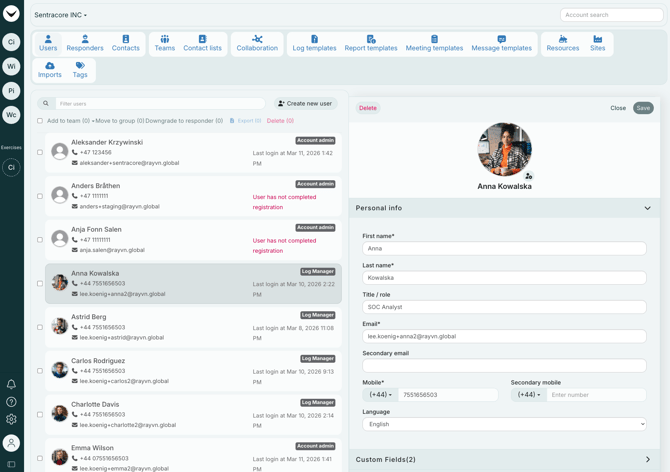
Introducing all tabs in Account Settings (left to right)
Users
Users are the only category with access to RAYVN. Add users to teams to enable notifications and invite them to incidents. Add roles to grant admin permissions.
Responders
Responder is a user type without access to RAYVN. Add them to teams to enable notifications. Responders can reply to SMS notifications when in an active team.
Contacts
Contacts are people you wish to keep informed in the case of a critical event. Add them to contact lists to enable one-way e-mail and SMS notification.
Teams
Teams lets you organize your users and responders. When a log is created, you can add teams to the log, and they will receive notifications and be able to respond. Users in the notified teams will get access to the ongoing incident.
Contact lists
Use contact lists to alert people in the case of a critical event. Add users, responders, and contacts to contact lists, and enable one-way e-mail and SMS notifications.
Note: Contact lists are only available from an active log.
Collaboration
Predefine your emergency response network, and easily collaborate with stakeholders during incidents by notifying and sharing information.
Examples of stakeholders are emergency services, government agencies, business partners, insurance companies, subsidiaries, and neighbours.
Log templates
Ready-to-go templates for your scenarios. Predefine notification text, teams to be notified, checklists, and documents.
Report templates
Predefine templates that can be used when writing a report from your active log. Add sections and predefined text that will be included in your report.
Meeting templates
Predefine meeting agendas to save time.
Example: first meeting, status meeting, debrief meeting
Message templates
Prewrite messages that can be sent out when in the middle of an incident!
Example: general information to all employees, information related to a cyber attack.
Resources
Add resources to your organization to create an overview of what is available when a critical event arises. Categorize them by using tags, and connect them to sites to know where the resources can be found. You can mobilize the resources from your active log.
Sites
Predefine locations in the map. Sites can be selected as the starting point for incidents, and all sites will always be available in the map.
Imports
Read out the version history of your contact imports. This is only relevant if this is done manually through spreadsheets.
Tags
Create and manage tags to organize resources and log entries in your account.