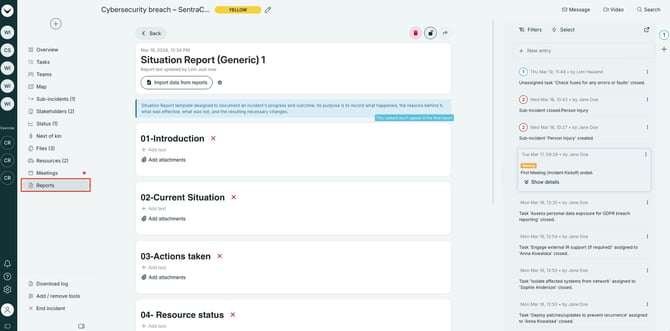
Get familiar with the log tools in RAYVN to find out which ones are relevant for your organization.
This article is an introduction to the log tools in RAYVN.
Log tools are features that can be turned on and off as needed. The default setup, meaning which log tools should be available when a log is first created, is configured by the administrator (General -> Account settings. All log tools can also be turned on or off directly from the active log when needed. If this is done, the changes only apply temporarily to the current log.
The following log tools are always visible and cannot be turned off:
-
Overview
-
Tasks
-
Teams
-
Files
-
Meetings
-
Reports
Where do I find the log tools?
Log tools are available on the left-hand side of the active log.
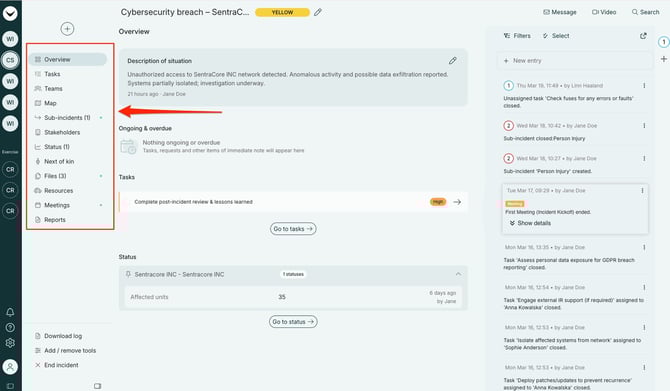 Overview of active log tools.
How do I change the log tools from the active log?
At the very bottom of the log tool list, you will find Add/remove tools. This can be done by any user in the log, and the changes apply to everyone.
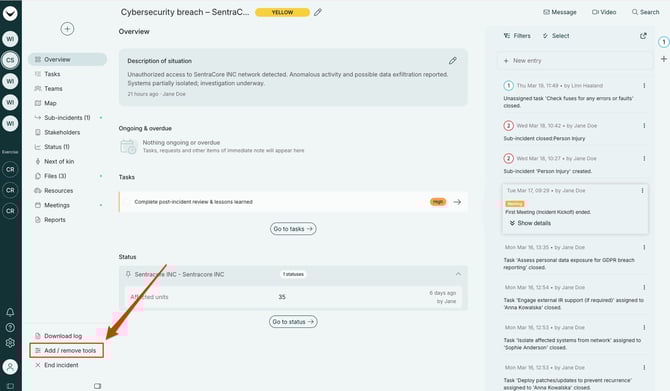 Add/remove log tools.
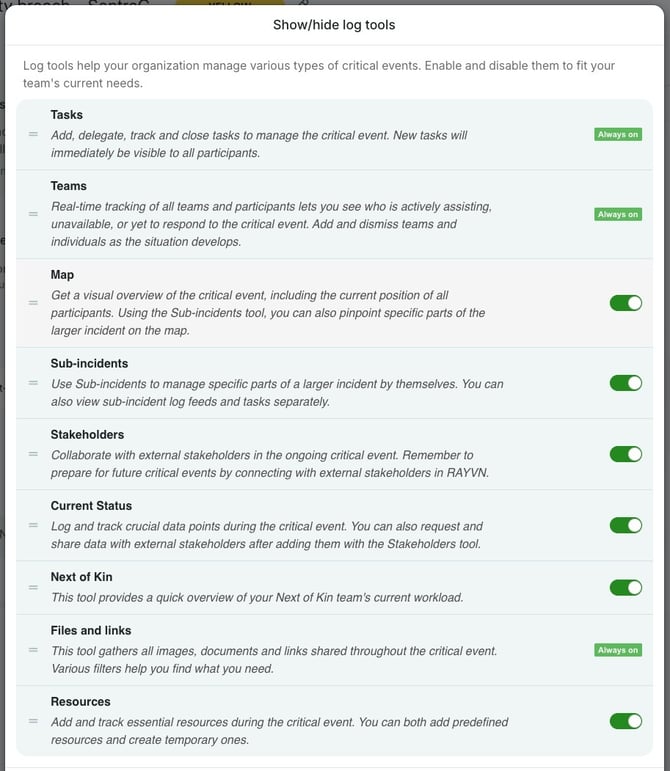 Choose which log tools should be shown and hidden.
An introduction to all the log tools:
Overview
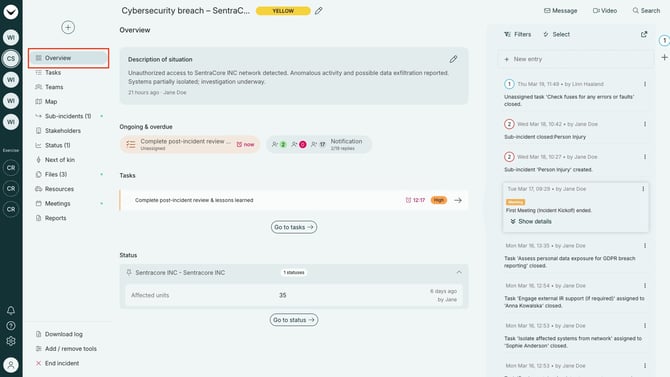
A general overview of the incident. Here you will find the updated situation description, an overview of ongoing activities, as well as tasks and statuses.
Tasks
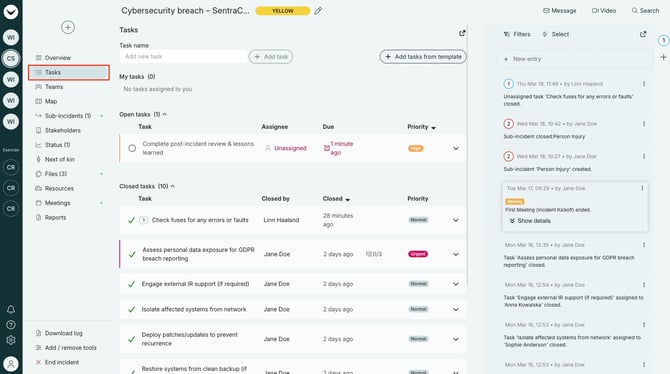
All tasks related to the incident, both predefined tasks and new tasks created along the way.
Retrieve new tasks from other templates if needed, and keep track of what has been completed. Add new tasks, set priorities and deadlines, add subtasks, and assign tasks to members in the log.
All users will find their own tasks listed under My tasks.
Teams
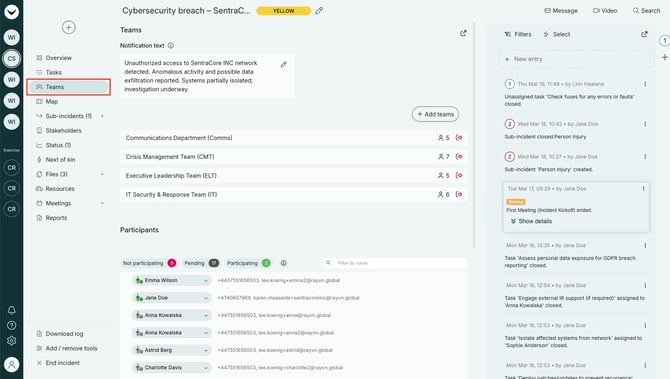
An overview of all teams that have been notified and have access to the log. Below the team overview, you will find all individual members in the log listed together with their responses.
From here, you can easily alert new teams/individuals and remove access.
Map
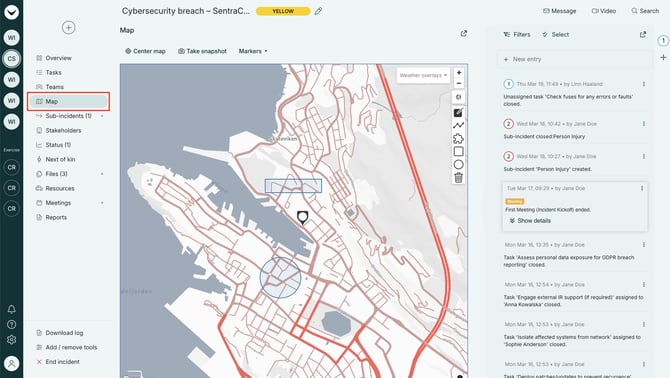
Link a position to the incident, and use the map to build situational awareness and maintain an overview of personnel (users) and resources.
Quick access to weather data, along with the ability to draw on the map and take screenshots.
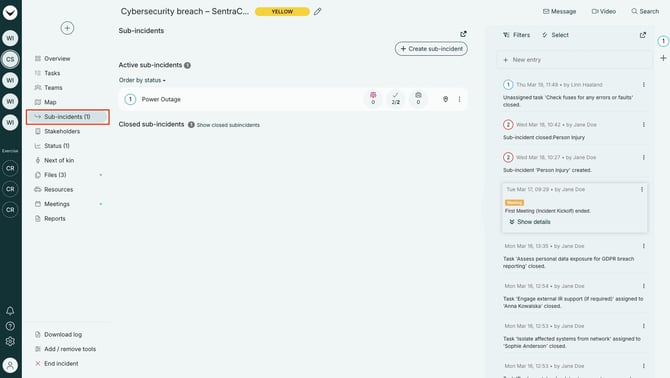
Sub-incidents
Follow up on several smaller incidents in parallel. Sub-incidents are typically smaller incidents with a shorter duration than the main log itself.
Link tasks and log entries to sub-incidents and keep track of multiple parallel incidents at the same time in an organized way.
Each sub-incident generates its own report.
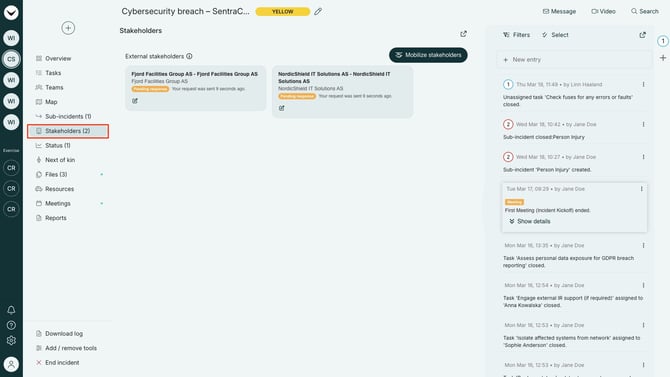
Stakeholders
Connect with stakeholders when needed and share information during incidents. Here you will find an overview of whom you are connected with, and you will be able to quickly add more stakeholders.
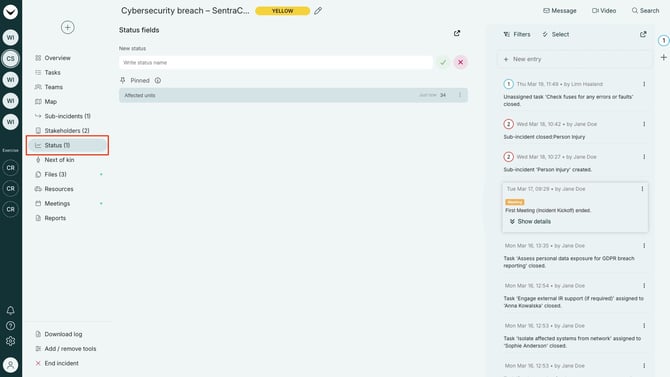
Status
Create statuses and make it easy for everyone to follow developments. The most important statuses can be pinned to the board.
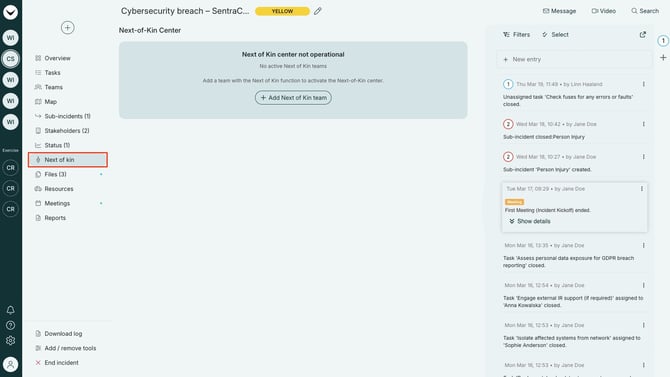
Next of Kin
Keep control over what information employees working in the next-of-kin module have access to, and gain insight into activity levels.
The next-of-kin module in RAYVN is an additional module available on request.
Files
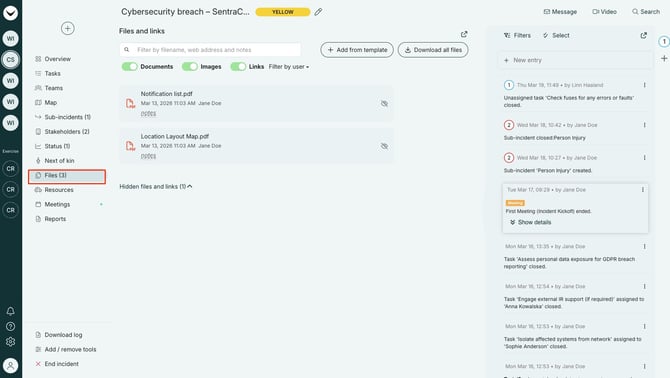
This is where all files related to the incident are collected. Some may be predefined, while others can be uploaded during the incident. All files published in the log feed will also be available here.
Resources
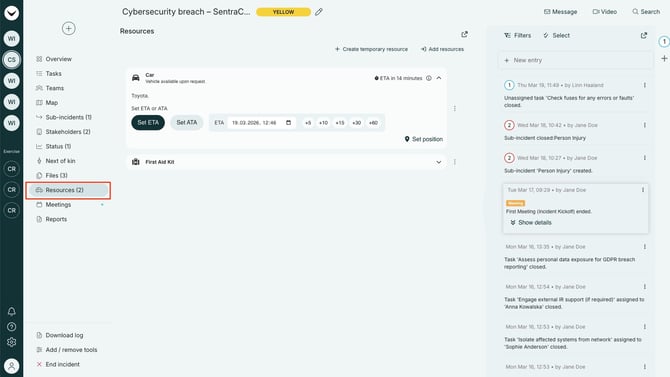
Register material resources and use RAYVN to keep track of them. Link them to different sites, place them on the map, add notes, and add ETA/ATA for mobile resources.
Status Meetings
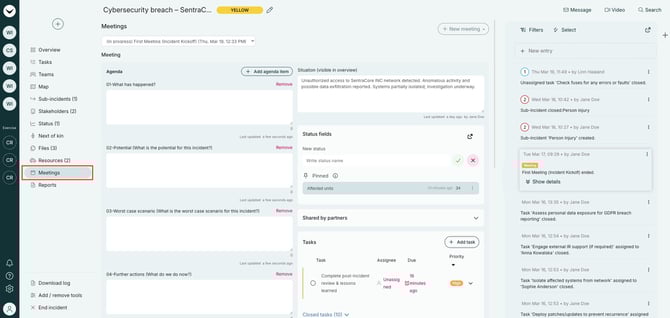
Conduct meetings with participants in the log. Take notes directly in RAYVN, set focus areas, update the status board, situation description, and tasks. When meetings are finished, they are automatically published in the log feed.
Reports
Fill out reports and send them onward. If you have several stakeholders (organizations/departments/subsidiaries) reporting to you, you can easily compile multiple reports into one.